How to Use Compatibility Mode for Older Printers in Windows 11
When you upgrade to Windows 11, one of the most frustrating challenges you might face is discovering that your perfectly functional printer suddenly won’t work. If you’re wondering how to use compatibility mode for older printers, you’re not alone. Thousands of users are searching for solutions to keep their legacy HP, Canon, Epson, and Brother printers operational without spending hundreds on replacements. This comprehensive guide will walk you through proven methods to resurrect your older printer using compatibility mode and alternative workarounds.
Understanding the Windows 11 Printer Compatibility Challenge
Windows 11 represents a significant architectural shift from its predecessors, and while Microsoft built it on Windows 10’s foundation, the operating system introduced stricter driver signature requirements and deprecated certain legacy printing protocols. This creates genuine compatibility hurdles for printers manufactured before 2015, particularly those last supported on Windows XP, Vista, or Windows 7.
According to recent user reports and manufacturer support forums, the most common compatibility issues involve driver installation failures, missing printer functionality (especially scanning features on multifunction devices), and complete inability to recognize older hardware. The good news? Most of these issues can be resolved without purchasing new equipment.
Why Compatibility Mode Matters for Legacy Printers
Compatibility mode is a Windows feature that allows programs and drivers designed for previous operating systems to run on newer versions. When manufacturers discontinue driver support for older printer models, compatibility mode becomes your primary tool for maintaining functionality. This feature tricks the driver installation software into believing it’s running on an older Windows version, bypassing some of the modern OS restrictions.
Dell’s printer support documentation confirms that installing drivers from previous Windows versions in compatibility mode can restore “some or all the printer functionality” even when official Windows 11 drivers don’t exist. This approach has proven successful for users struggling with discontinued models across all major brands.
Step-by-Step Guide: Installing Older Printer Drivers in Compatibility Mode
Step 1: Identify the Right Driver Version
The first critical step is downloading the correct driver. Navigate to your printer manufacturer’s support website and locate your specific printer model. Look for the most recent driver available, following this priority order:
- Windows 10 64-bit drivers (most likely to work)
- Windows 8.1 64-bit drivers
- Windows 7 64-bit drivers
- Earlier versions if necessary (Vista, XP – with limitations)
Expert tip: Always prioritize 64-bit drivers over 32-bit versions if you’re running a 64-bit installation of Windows 11, which is standard for modern systems. You can verify your system architecture by typing “System Information” in the Windows search bar.
Step 2: Uninstall Existing Printer Software Completely
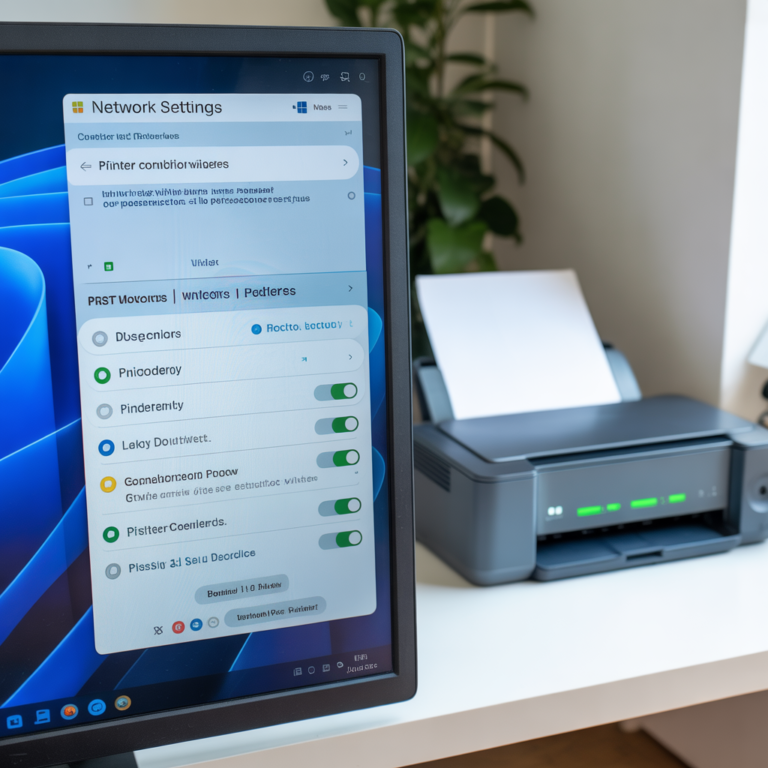
Before attempting a compatibility mode installation, remove all traces of previous printer software to prevent conflicts. Navigate to Settings > Apps > Installed Apps, and uninstall any printer-related applications. Additionally, go to Settings > Bluetooth & devices > Printers & scanners and remove the printer from this list.
For thorough cleanup, experienced technicians recommend running the manufacturer’s official removal utility if available. HP, Canon, and Epson all provide dedicated uninstaller tools that remove registry entries and hidden files that standard uninstallation might miss.
Step 3: Configure Compatibility Mode
Once you’ve downloaded the appropriate driver file, locate it in your Downloads folder. Right-click on the driver setup file (usually ending in .exe) and select “Properties.” Navigate to the “Compatibility” tab where you’ll find several crucial options:
- Check the box labeled “Run this program in compatibility mode for”
- Select the Windows version matching your downloaded driver (Windows 10, Windows 8, or Windows 7)
- Optionally check “Run this program as administrator” for elevated permissions
Click “Apply” and then “OK” to save these settings.
Step 4: Install the Driver
Double-click the driver file to begin installation. The setup wizard should now run believing it’s operating on the selected older Windows version. Follow all on-screen prompts carefully. If you encounter an error stating “This driver is not compatible with this version of Windows,” you may need to disable driver signature enforcement temporarily.
Step 5: Manual Printer Addition (If Automatic Detection Fails)
If Windows 11 doesn’t automatically detect your printer after driver installation, you’ll need to add it manually:
- Open Settings > Bluetooth & devices > Printers & scanners
- Click “Add device”
- When the system finishes searching, click “Add manually”
- Select “My printer is a little older. Help me find it”
- Choose your printer from the list of installed drivers
For network printers, you may need to add them using a TCP/IP address configuration instead.
Advanced Troubleshooting: When Compatibility Mode Isn’t Enough
Disabling Driver Signature Enforcement
Windows 11 strictly enforces digital signature requirements for drivers, which blocks many older unsigned drivers. To temporarily disable this security feature:
- Hold Shift while clicking “Restart” from the Start menu
- Navigate to Troubleshoot > Advanced Options > Startup Settings
- Click “Restart”
- Press F7 to select “Disable driver signature enforcement”
Your computer will restart with signature enforcement disabled for that session. Install your printer driver during this window. Note that you’ll need to repeat this process after each restart, which is why it’s recommended only for testing whether your driver can function without signature restrictions.
Using Generic Printer Drivers
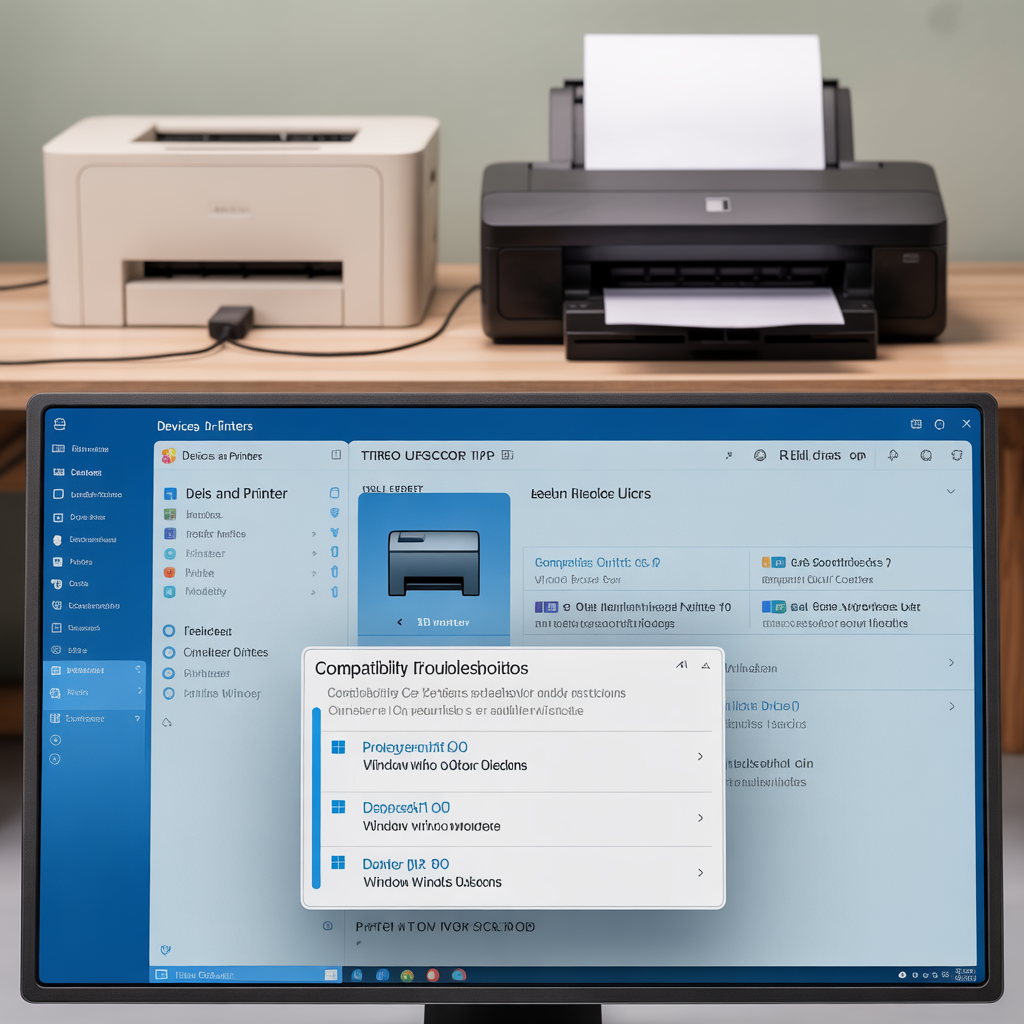
Microsoft includes generic printer drivers in Windows 11 that support basic functionality for many older models. While you won’t get advanced features like duplex printing or scanning, basic printing often works reliably. When adding a printer manually, look for options like “Generic / Text Only” or check if your printer manufacturer appears in the built-in driver list with a generic driver option.
IT professionals frequently recommend this approach for business environments where printing reliability matters more than advanced features. As one Dell support technician notes, “Generic drivers sacrifice features for compatibility, but they keep critical workflows operational.”
Real-World Success Stories and Limitations
User forums reveal mixed but generally positive results with compatibility mode approaches. Canon Pro-100 users report smooth transitions to Windows 11 using Windows 10 drivers without compatibility mode enabled, while owners of older models like the Canon iP4000 successfully print using Windows 7 drivers in compatibility mode.
However, extremely old printers with only Windows XP drivers face steeper challenges. The architectural differences between XP and Windows 11 are significant enough that even compatibility mode rarely succeeds. Users attempting to run Windows XP printer drivers report installation loops, command errors, and missing functionality even when drivers appear to install successfully.
The practical limitation seems to be the Windows 7 threshold. Printers with Windows 7 or newer drivers have a high success rate, Windows Vista drivers show moderate success, and Windows XP drivers rarely function beyond basic text printing if they work at all.
Maintaining Your Legacy Printer on Windows 11
Once you’ve successfully installed your older printer, implement these maintenance practices to ensure continued reliability:
Regular Windows Updates: Paradoxically, keeping Windows 11 fully updated can both break and fix printer functionality. Microsoft occasionally releases patches that improve legacy hardware support. Always create a system restore point before major updates.
Driver Preservation: Save a copy of your working driver installation file to external storage or cloud backup. If a Windows update breaks your printer, you’ll be able to quickly reinstall without searching for the driver again.
Alternative Connection Methods: If Wi-Fi printing proves unstable, consider switching to a direct USB connection. Many users report more consistent results with physical connections, particularly for older wireless models.
Print Server Solutions: For advanced users, setting up a dedicated print server using an older Windows 10 computer or Raspberry Pi running CUPS (Common Unix Printing System) can provide a reliable workaround that keeps legacy printers accessible across a modern network.
When to Consider Replacement vs. Repair
While compatibility mode extends the life of older printers, honestly evaluate when replacement makes more sense. Consider these factors:
Cost-benefit analysis: If you’re spending 15+ hours troubleshooting a $50 printer, your time may be worth more than a replacement. However, professional-grade printers worth hundreds or thousands of dollars justify significant troubleshooting effort.
Security concerns: Older printer firmware may contain unpatched vulnerabilities. For business networks or security-sensitive home users, this risk might outweigh the cost savings of keeping legacy hardware.
Consumable availability: Some discontinued printers face dwindling supplies of ink cartridges or toner. If replacement consumables cost more than a new printer, the math favors upgrading.
Environmental considerations: Functional printers shouldn’t become e-waste prematurely. If compatibility mode works, you’re making an environmentally responsible choice by extending hardware life.
Expert Perspectives on Windows 11 Printer Compatibility
Technology consultants consistently advise approaching Windows 11 upgrades strategically when legacy printers are involved. “Test compatibility before committing to the upgrade,” recommends one Microsoft-certified professional. “Keep one Windows 10 machine available as a print server fallback if your entire workflow depends on an older printer.”
Industry observers note that Microsoft’s driver strategy increasingly favors modern IPP (Internet Printing Protocol) class drivers and Mopria certification. While this improves security and simplifies driver management for new printers, it creates legitimate challenges for hardware manufactured before these standards became prevalent.
The printing industry itself acknowledges this tension. Major manufacturers like HP and Canon face criticism for discontinuing driver support for otherwise functional hardware, but they argue that maintaining driver compatibility across decades of operating system evolution represents an unsustainable engineering burden.
Conclusion: Empowering Users to Make Informed Decisions
Learning how to use compatibility mode for older printers in Windows 11 empowers you to make informed decisions about your hardware rather than accepting forced obsolescence. While not every legacy printer will function perfectly on Windows 11, the techniques outlined in this guide give you the best chance of success without specialized technical knowledge.
The compatibility mode approach works best for printers with Windows 7 or newer drivers, offers moderate success with Vista drivers, and faces significant challenges with Windows XP-era hardware. Before spending money on replacement equipment, invest 30-60 minutes testing these methods. You might be surprised how often a printer declared “incompatible” works perfectly with the right driver installation approach.
Remember that technology should serve your needs, not dictate them. Whether you successfully revive an older printer or ultimately decide that replacement makes more sense, you’ll be making that decision from a position of knowledge rather than assumption.
FAQs
Will compatibility mode work for all older printers on Windows 11?
Compatibility mode success varies significantly based on the printer’s age and last supported operating system. Printers with Windows 7 or Windows 10 drivers have high success rates, while models limited to Windows XP drivers face substantial challenges. Generic drivers can provide basic functionality when manufacturer drivers fail completely.
How do I enable compatibility mode for printer drivers in Windows 11?
Right-click the downloaded driver installation file, select Properties, navigate to the Compatibility tab, check “Run this program in compatibility mode for,” select the appropriate Windows version (typically Windows 10, 8, or 7), and optionally enable “Run this program as administrator.” Apply these settings before running the installer.
Can I use Windows XP printer drivers on Windows 11?
Windows XP drivers rarely work on Windows 11 due to fundamental architectural differences between the operating systems. Even with compatibility mode and disabled driver signature enforcement, XP drivers typically fail to install properly or produce command errors during printing. Windows 7 or newer drivers are recommended.
What should I do if Windows 11 won’t recognize my printer after driver installation?
Manually add the printer by going to Settings > Bluetooth & devices > Printers & scanners > Add device > Add manually > “My printer is a little older. Help me find it.” Select your printer from the available driver list. For network printers, you may need to configure TCP/IP settings manually.
Is it safe to disable driver signature enforcement to install older printer drivers?
Disabling driver signature enforcement removes an important security protection temporarily. Only disable it when necessary for driver installation, and understand that you’re accepting potential security risks. The setting resets after each restart, requiring re-enablement for subsequent driver installations.
Why does my printer scan but not print (or vice versa) on Windows 11?
This indicates partial driver compatibility where some functions work while others don’t. Multi-function printers often use separate driver components for printing and scanning. Try installing both the print driver and scan driver separately, potentially from different Windows versions (e.g., Windows 10 print driver with Windows 8 scan driver).
Which printer brands have the best Windows 11 compatibility for older models?
Based on user reports, HP and Canon generally provide better backward compatibility, with many models working via Windows 10 drivers without compatibility mode. Brother printers show mixed results, while Epson users frequently report needing specific workarounds. Generic drivers often work across brands for basic printing needs.
Yes, this is an effective workaround. Keep the printer connected to a Windows 10 machine, enable printer sharing in network settings, and add it as a network printer on your Windows 11 computers. This approach avoids driver compatibility issues entirely while maintaining printer access.
How do I find the correct older driver for my printer model?
Visit your printer manufacturer’s support website, enter your exact model number, and browse available drivers starting with the newest Windows version listed. Dell recommends following this priority: Windows 11, Windows 10, Windows 8.1, Windows 8, Windows 7, Windows Vista. Always choose 64-bit versions for modern systems.
What are the alternatives if compatibility mode doesn’t work for my printer?
Consider these alternatives: use generic Microsoft printer drivers for basic functionality, set up a dedicated Windows 10 print server computer, explore third-party universal printer drivers, use virtualization software to run older Windows versions, or connect via a Raspberry Pi running CUPS. As a last resort, evaluate whether printer replacement is more cost-effective than continued troubleshooting.
Related Resources:
- 5 Common Causes of Slow Printing in Windows 11 (and Fixes)
- Microsoft Windows 11 Printer Troubleshooting Guide
- Manufacturer Support Sites: HP, Canon, Epson, Brother