HP Firmware Downgrade for Printers using HP 953XL/903XL Ink Cartridges
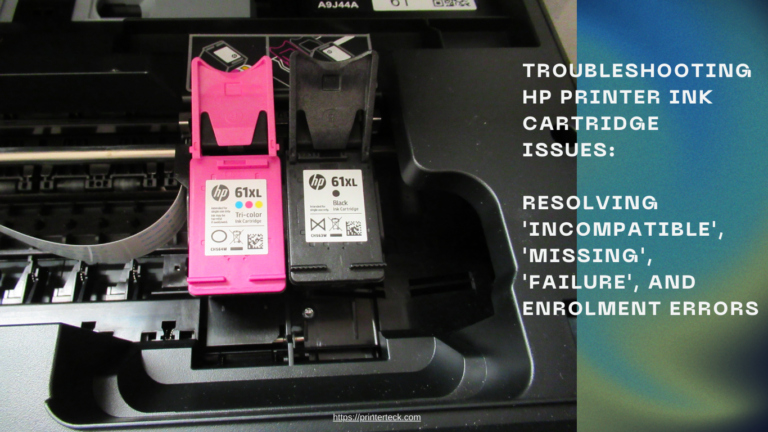
If your HP printer suddenly displays an “Ink Cartridge Not Recognised,” “Cartridge Problem,” “Missing or Damaged Cartridge,” or “Cartridges Blocked” message, a recent firmware update may be responsible.
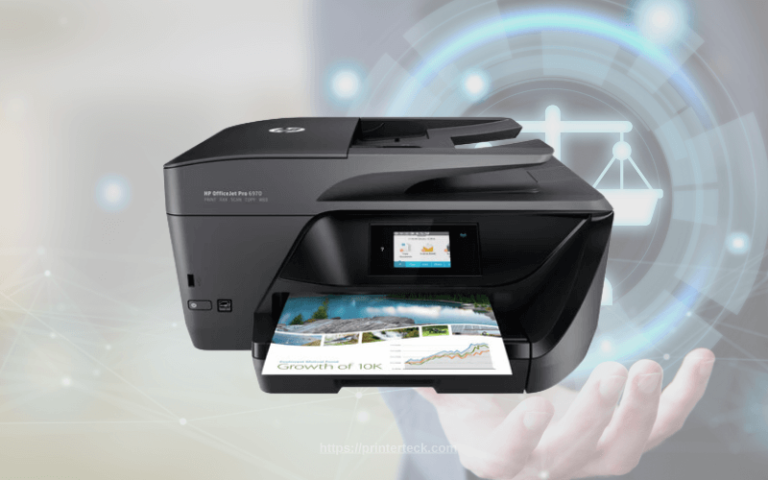
This sometimes happens when an HP OfficeJet Pro printer that previously accepted compatible HP 903XL or 953XL cartridges installs new firmware. The update may change how the printer communicates with the electronic chips fitted to the cartridges.
However, firmware is not the only possible cause. A cartridge may also stop working because of a dirty contact, damaged chip, incorrect cartridge region, installation problem or faulty cartridge.
This guide explains how to identify the likely cause, perform safe troubleshooting, disable automatic firmware updates where the option is available, and investigate whether a firmware downgrade is possible for your particular printer.
Important: Never install firmware intended for a different printer model or regional variant. An incorrect or interrupted firmware installation can make the printer unusable. PrinterTeck does not host or distribute unofficial HP firmware files.
HP 953XL/903XL Ink Cartridges
What Should You Do First?
If compatible HP 903XL or 953XL cartridges stopped working immediately after a firmware update:
- Do not repeatedly remove and reinstall the cartridges.
- Make a note of the exact error message.
- Check which firmware version is installed.
- Restart the printer without the power cable connected.
- Clean and inspect the cartridge contacts.
- Test the cartridges individually, if the printer permits this.
- Turn off automatic firmware updates, if that setting is available.
- Check whether a verified downgrade is supported for your exact printer.
- Contact the cartridge supplier if the compatible chips need replacing.
Do not assume that every cartridge error requires a firmware downgrade. Complete the basic checks first.
What Is HP Printer Firmware?
Firmware is the internal software that controls the printer’s hardware and essential functions. It helps the printer manage tasks such as:
- Recognising ink cartridges
- Communicating with computers and mobile devices
- Connecting to a Wi-Fi network
- Processing print jobs
- Managing security features
- Controlling the printhead and ink system
- Fixing software bugs and performance issues
HP periodically releases firmware updates for supported printers. These updates may include security fixes, new features and reliability improvements. HP recommends obtaining firmware through its official applications or printer support pages. You can read HP’s current instructions in its official printer firmware update guide.
Why Can a Firmware Update Affect Compatible Cartridges?
Many modern printers use electronic communication between the printer and the chip fitted to each ink cartridge.
A firmware update can change how that communication is checked. If a compatible cartridge uses an older chip version, the printer may no longer accept it after the update—even if the same cartridge worked correctly beforehand.
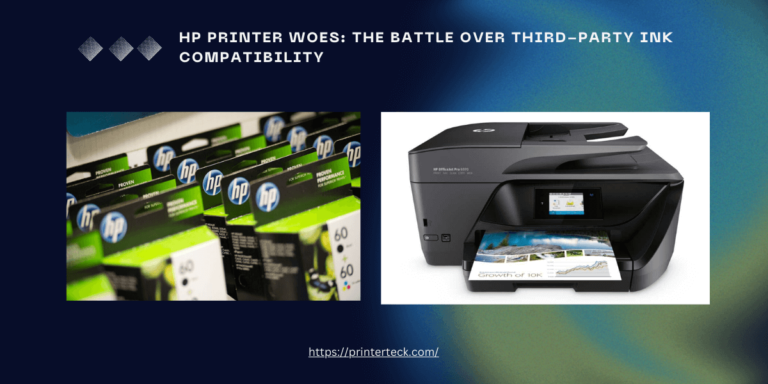
HP states that some printers use dynamic security, which may prevent cartridges containing non-HP chips or modified electronic circuitry from working. HP also says that periodic firmware updates can affect the effectiveness of these security measures. Check HP’s cartridge compatibility and dynamic security information for further details.
This does not mean that every firmware update will block compatible ink or that every cartridge error is caused by firmware.
Signs That Firmware May Have Caused the Problem
A firmware change is more likely to be involved when:
- All cartridges worked normally before the update.
- The error appeared immediately after the printer restarted.
- More than one compatible cartridge stopped working at the same time.
- A newly installed compatible cartridge produces the same message.
- The printer recently updated automatically while connected to the internet.
- Genuine HP cartridges are accepted but previously working compatible ones are rejected.
Firmware is less likely to be the cause when:
- Only one colour is affected.
- The cartridge is leaking or physically damaged.
- The protective tape has not been removed.
- The cartridge number is incorrect.
- The gold-coloured contact or chip is scratched.
- The error appeared after moving or cleaning the printer.
- The cartridge has never worked in that printer.
HP 903XL and 953XL Printer Compatibility
HP cartridge numbers vary by country and region. In the UK and much of Europe, the relevant cartridge families are normally HP 903/903XL and HP 953/953XL.
Printers Commonly Using HP 903 or 903XL Ink
These include selected models in the following ranges:
- HP OfficeJet 6950
- HP OfficeJet 6954
- HP OfficeJet 6958
- HP OfficeJet Pro 6960
- HP OfficeJet Pro 6962
- HP OfficeJet Pro 6968
- HP OfficeJet Pro 6970
- HP OfficeJet Pro 6975
- HP OfficeJet Pro 6978
Printers Commonly Using HP 953 or 953XL Ink
These include selected models in the following ranges:
- HP OfficeJet Pro 7720
- HP OfficeJet Pro 7730
- HP OfficeJet Pro 7740
- HP OfficeJet Pro 8210
- HP OfficeJet Pro 8216
- HP OfficeJet Pro 8218
- HP OfficeJet Pro 8710
- HP OfficeJet Pro 8715
- HP OfficeJet Pro 8718
- HP OfficeJet Pro 8720
- HP OfficeJet Pro 8725
- HP OfficeJet Pro 8730
- HP OfficeJet Pro 8740
- HP OfficeJet Pro 8745
Compatibility note: Model numbers, cartridge numbers and regional versions can differ. Confirm the cartridge number shown inside the printer, in the manual or on the existing cartridges before purchasing replacements.
HP 902XL and 952XL are related cartridge families used primarily in other markets. A 902XL or 952XL cartridge should not be treated as interchangeable with a UK 903XL or 953XL cartridge simply because the printer looks similar.
Disabling Automatic Firmware Updates:
To continue using compatible cartridges, you can disable automatic firmware updates on your printer. Please note that turning off updates may affect other functionalities. Refer to your printer’s support page for specific instructions on disabling automatic updates.
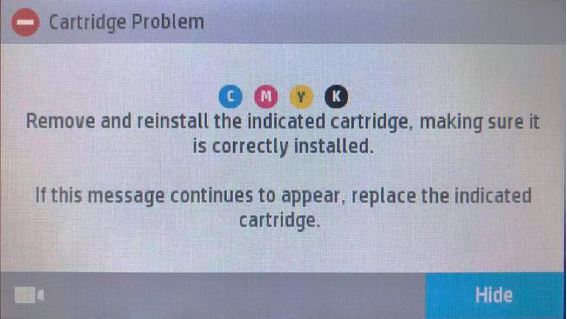
- If the firmware on your printer has been updated, you may encounter the following message on your printer’s display, which will prevent you from using compatible ink cartridges.
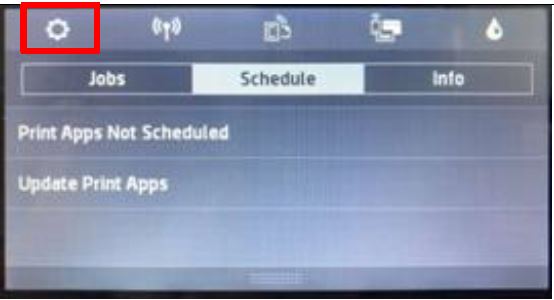
2. To access the printer’s tools dashboard, navigate to the control panel and either press the COG button or swipe down. Once the tools dashboard is open, locate and select the circular setup icon.
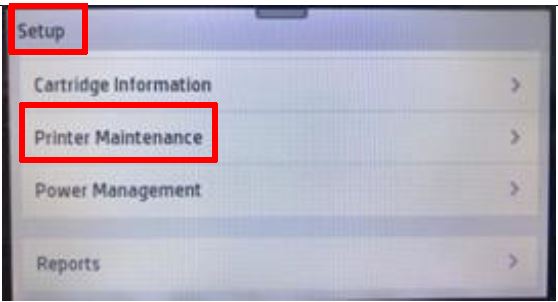
3. Navigate through the display options and choose ‘Printer Maintenance’ from the available selections.
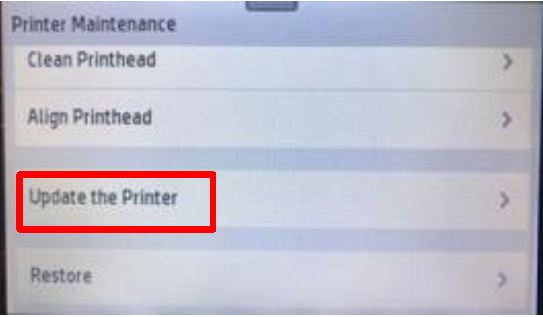
4. Navigate upwards on the display and choose ‘Update the Printer’ from the available options.
5. On the screen, locate and press the ‘Printer Update Options’ button.
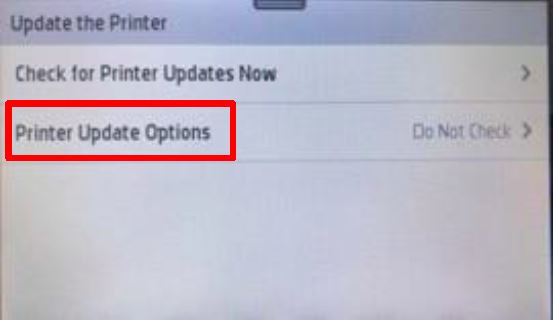
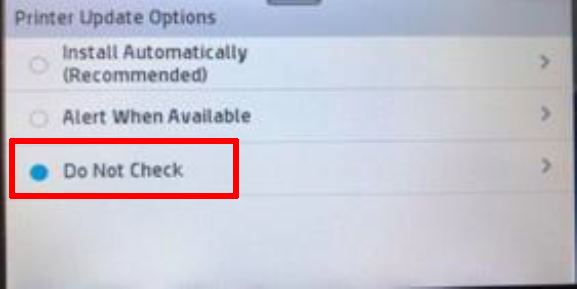
6. Select “Do Not Check”
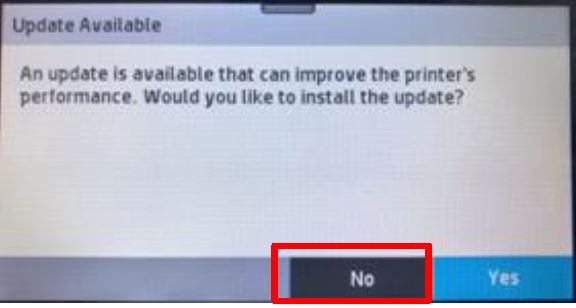
7. Select ‘No’ to turn off printer updates
Before Attempting a Firmware Downgrade
A downgrade should be considered only after the following checks.
1. Record the Exact Error
Write down or photograph the complete message displayed on the printer. Examples include:
- Ink Cartridge Not Recognised
- Cartridge Problem
- Missing or Damaged Cartridge
- Incompatible Cartridge
- Cartridges Blocked
- Supply System Problem
- Remove and Reinstall the Indicated Cartridge
Different messages can indicate different faults, so the precise wording matters.
2. Confirm the Correct Cartridge Numbers
Open the cartridge access door and check that every cartridge belongs to the correct family.
Do not mix:
- HP 902 with HP 903
- HP 952 with HP 953
- Cartridges intended for different sales regions
- Setup cartridges from another printer
- Instant Ink cartridges with an incompatible account or printer
3. Restart the Printer Properly
With the printer switched on:
- Disconnect the power cable from the rear of the printer.
- Unplug the other end from the wall socket.
- Wait approximately 60 seconds.
- Reconnect the cable directly to a wall socket.
- Reconnect it to the printer.
- Switch the printer on and allow it to initialise.
This clears temporary states but does not remove installed firmware.
4. Inspect and Clean the Cartridge Chips
Remove the affected cartridge and inspect its electronic contact or chip.
Look for:
- Protective tape that has not been removed
- Ink contamination
- Dust or fingerprints
- Scratches
- Cracks or other physical damage
- A loose or incorrectly positioned chip
Use a clean, dry, lint-free cloth to gently wipe the contact. Do not use abrasive materials or touch the ink outlet.
Wait until the contact is completely dry before reinstalling the cartridge.
5. Reinstall Each Cartridge Carefully
Fit every cartridge into its matching colour position and press it down until it clicks securely into place.
If the printer identifies a particular colour, test another suitable cartridge in that position where possible. This can help determine whether the problem is limited to one cartridge or affects the complete set.
How to Check the Installed HP Firmware Version
The menu names vary between models, but the firmware version may be available through one of these methods.
From the Printer Control Panel
Look under a menu such as:
Setup → Printer Maintenance → Printer Information
or:
Setup → Reports → Printer Status Report
Print the report and look for an entry labelled Firmware Version, Firmware Revision or Firmware Datecode.
Using the Printer’s Embedded Web Server
If the printer is connected to your network:
- Find the printer’s IP address from its network or wireless settings.
- Enter that IP address into a web browser on the same network.
- Open the printer information, tools or update section.
- Locate the firmware version.
HP also provides guidance on accessing printer settings through the HP app and the printer’s Advanced Settings interface.
Write down the full firmware version before making any changes.
How to Disable Automatic HP Firmware Updates
The exact options depend on the printer model and installed firmware. Some printers allow update checks to be disabled, while others offer only notification or installation preferences.
On many compatible OfficeJet Pro control panels, try the following:
- Swipe down from the top of the printer display to open the dashboard.
- Select the Setup or cog icon.
- Open Printer Maintenance.
- Select Update the Printer.
- Select Printer Update Options.
- Choose Do Not Check, Do Not Update, Notify Only, or the nearest available option.
- Confirm the selection if the printer asks for permission.
The wording may be different on your model.
You may also be able to review the update settings through the printer’s Embedded Web Server:
- Enter the printer’s IP address in a web browser.
- Open Tools, Printer Updates, Firmware Update or a similarly named section.
- Review the automatic-update settings.
- Save any changes.
Should You Turn Off Firmware Updates?
Disabling updates may help prevent an unexpected compatibility change, but it involves a trade-off. Firmware updates can also contain security improvements, bug fixes and performance corrections.
If the printer is used in a business or connected to a shared network, consider the security implications before leaving updates disabled permanently.
Can You Downgrade HP Printer Firmware?
Sometimes—but not in every case.
A downgrade is possible only when:
- A compatible older firmware package exists.
- The package matches the exact printer model.
- It matches the appropriate region or product variant.
- The printer accepts installation of an older version.
- The current firmware has not disabled rollback.
- The computer and printer remain connected throughout installation.
HP’s standard support pages generally prioritise the latest firmware. Older releases or downgrade packages may not be publicly available for every printer.
Safe Firmware Downgrade Procedure
If HP or another reliable source provides a verified downgrade package for your exact model:
- Confirm the complete printer model and product number.
- Print or save the current firmware information.
- Download the correct package to a computer.
- Scan the downloaded file with current security software.
- Connect the printer using the method specified in the package instructions.
- Close unnecessary applications.
- Make sure the printer has a stable power supply.
- Run the firmware utility and select only the correct printer.
- Do not switch off the printer or computer during installation.
- Wait for the printer to restart completely.
- Print a status report to confirm the installed version.
- Test the cartridges again.
- Review the automatic-update setting after completion.
Never Do the Following
- Do not install firmware intended for a similar-looking model.
- Do not rename another model’s firmware file.
- Do not interrupt the power during installation.
- Do not use files from an unknown download website.
- Do not disconnect the USB or network connection during the process.
- Do not assume an online “fix” is safe because another person says it worked.
- Do not continue if the model, region or firmware version is uncertain.
If the downgrade fails or the printer does not offer a rollback option, contact HP or a qualified printer technician before attempting further firmware changes.
What If Firmware Downgrade Is Not Available?
If no safe downgrade exists, you still have several options.
Ask the Cartridge Supplier About Updated Chips
Reputable compatible cartridge suppliers may release updated cartridge versions after a firmware change. Provide the supplier with:
- Printer model
- Cartridge numbers
- Installed firmware version
- Exact error message
- Purchase date
- Photographs of the cartridge labels and chips
The supplier may offer replacement cartridges with newer chips.
Test a Different Compatible Cartridge Batch
If only one cartridge or one set fails, the issue may be related to that production batch rather than the printer itself.
Test Genuine HP Cartridges
Testing genuine HP cartridges can help isolate the problem. If genuine cartridges also fail, the fault may involve the printhead, carriage contacts or ink delivery system rather than compatible-cartridge firmware.
Contact HP Support
If the printer displays errors with correct genuine HP cartridges, contact official HP Support using the precise printer model, serial number and error message.
How to Prevent Future Cartridge Problems
You cannot prevent every firmware-related issue, but these steps can reduce disruption:
- Check update notes before installing new firmware.
- Record the current firmware version while the printer is working.
- Purchase compatible cartridges from a supplier offering technical support.
- Keep cartridge receipts and packaging until the cartridges have been tested.
- Avoid mixing cartridges from several different sets.
- Do not touch cartridge chips with your fingers.
- Keep spare cartridges sealed until required.
- Confirm whether automatic updates are enabled.
- Use a stable power and network connection during authorised updates.
Frequently Asked Questions
Can HP firmware stop compatible 903XL or 953XL cartridges from working?
It can. Some firmware updates may change how a printer verifies the electronic chips on cartridges. However, dirty contacts, incorrect cartridge numbers, regional differences and defective cartridges can produce similar errors.
Why did my compatible ink cartridges suddenly stop working?
If several cartridges stopped working immediately after a printer update, firmware may be involved. If only one colour fails, the individual cartridge or its chip is more likely to be responsible.
Can I undo an HP printer firmware update?
Only on certain printer models and firmware versions. You need a verified older package that matches the exact printer model, and the printer must allow rollback. Downgrading is not universally supported.
Where can I download old HP printer firmware?
Start with the official support page for your exact printer. HP does not always publish previous firmware versions. Avoid unverified downloads because an altered or incorrect file could damage the printer or compromise your computer.
Is it safe to downgrade HP printer firmware?
It carries risk. Installing the wrong firmware or interrupting the process may leave the printer unable to start. Only proceed when the file is verified for the exact model and you understand the installation instructions.
Will a factory reset remove a firmware update?
Usually not. A factory reset may clear network settings and personal preferences, but it normally does not reinstall an older firmware version.
How do I know whether my printer updated automatically?
Check the printer information or status report for the installed firmware version. You can also inspect the update settings through the control panel or Embedded Web Server. If the error began immediately after a restart or overnight connection, an automatic update is one possible explanation.
Why does my printer say “Missing or Damaged Cartridge”?
The message may be caused by poor electrical contact, a damaged chip, an incorrectly installed cartridge, incompatible cartridge firmware or a printer hardware fault. Remove and inspect the indicated cartridge before considering a firmware downgrade.
Can I continue using compatible ink after a firmware update?
It depends on the printer, firmware and cartridge chip. A newer compatible cartridge with an updated chip may work even when an older compatible cartridge does not.
Should I disable HP automatic firmware updates?
It may prevent an unexpected cartridge-compatibility change, but updates can also deliver important security and reliability improvements. Consider how the printer is used and check updates manually if you disable automatic installation.
Are HP 902XL and 903XL cartridges interchangeable?
No. They are associated with different sales regions and must not be treated as interchangeable. Use the cartridge number specified for your exact printer and country.
Are HP 952XL and 953XL cartridges the same?
No. Although they are related regional cartridge families, they are not automatically interchangeable. Confirm the cartridge number printed inside your printer or listed in its official specifications.
Will disabling updates fix cartridges that are already blocked?
No. Disabling updates only helps prevent future automatic installations. It does not remove firmware that is already installed or repair a damaged cartridge chip.
Can a new compatible cartridge solve the problem without a downgrade?
Yes. A replacement cartridge fitted with an updated chip may be recognised by the current printer firmware. Contact the supplier and provide your installed firmware version before ordering a replacement.
Final Advice
If HP 903XL or 953XL compatible cartridges stop working, do not rush into installing old firmware. Begin by confirming the cartridge numbers, recording the error, restarting the printer and cleaning the contacts.
When the problem began immediately after an update and affects several compatible cartridges, firmware is a reasonable possibility. Disable further automatic updates if appropriate, record the installed version and ask the cartridge supplier whether updated chips are available.
Attempt a downgrade only if you have a trusted package that explicitly supports your exact printer model. If you are uncertain, contact HP, your cartridge supplier or a qualified printer technician.
This guide is provided for general troubleshooting information. Firmware availability, printer menus and cartridge-security behaviour can change. Always follow the instructions supplied for your exact HP printer model.