Why Is My Printer Not Recognizing Ink?
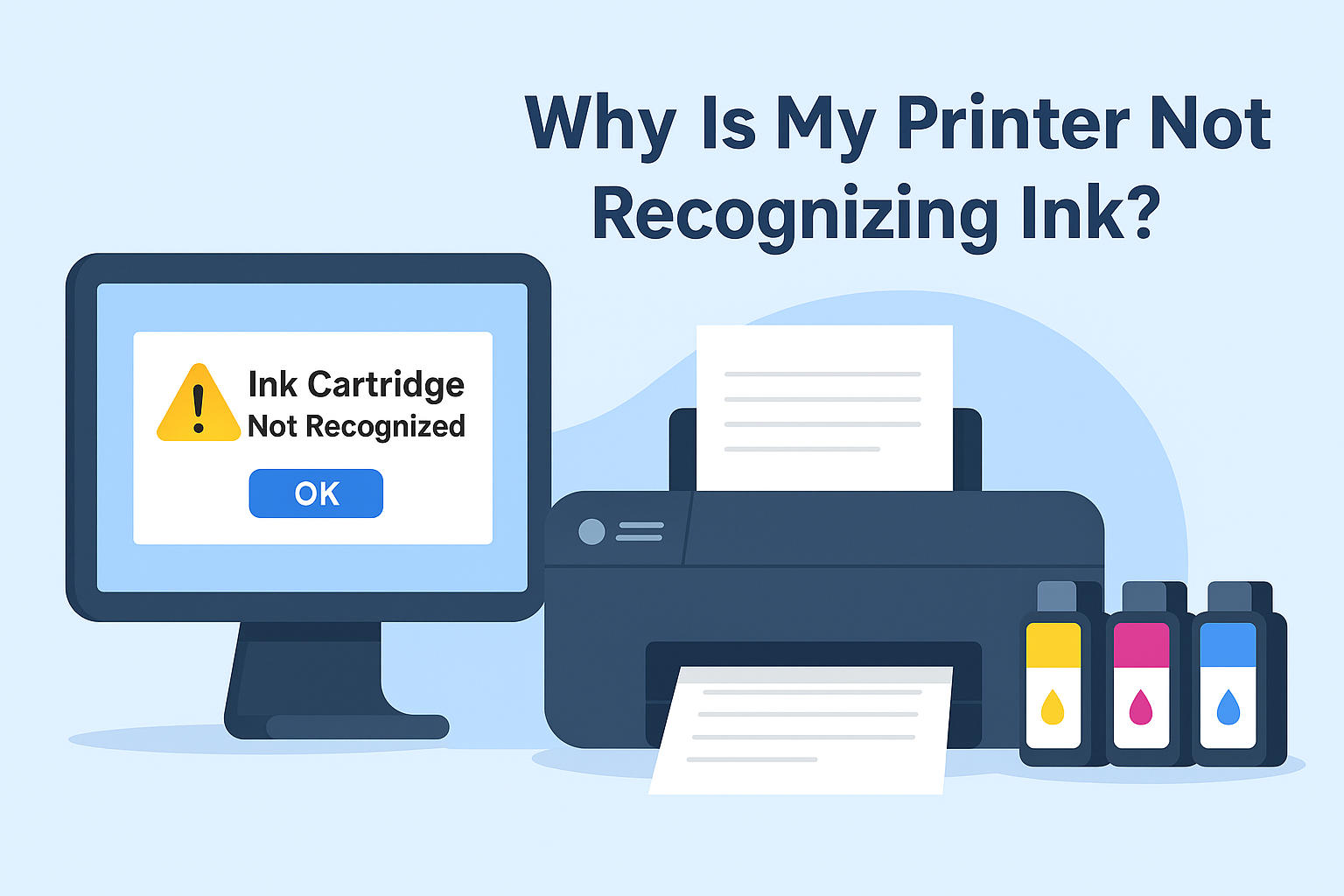
You’ve replaced your printer’s ink cartridge, only to be greeted with an annoying error: “Ink Cartridge Not Recognized.” Whether you’re using a Canon, Epson, Brother, or HP printer, this issue can disrupt your printing workflow and leave you frustrated.
Fortunately, this problem is usually easy to fix. In this guide, you’ll find practical, step-by-step solutions to resolve ink recognition errors — and understand why they happen in the first place.
Quick Navigations
- 1 Why Printers Fail to Recognize Ink Cartridges
- 2 Step-by-Step Fixes for “Ink Not Recognized” Error
- 3 Brand-Specific Tips
- 4 When to Replace the Ink Cartridge
- 5 Compatible vs. OEM Cartridges: Does It Matter?
- 6 How to Avoid Future Ink Recognition Issues
- 7 Troubleshooting Checklist
- 8 FAQs: Ink Cartridge Not Recognized
Why Printers Fail to Recognize Ink Cartridges
Printers rely on chips and firmware to communicate with ink cartridges. If there’s any mismatch or interference, your device may refuse to print.
Common Causes:
- Non-OEM (Compatible) cartridges
- Dirty or damaged cartridge chips
- Firmware updates blocking third-party inks
- Improper installation or packaging tabs left on
- Low-quality or defective cartridges
Step-by-Step Fixes for “Ink Not Recognized” Error
✅ 1. Restart the Printer
Sometimes, a basic reset does the trick.
Steps:
- Turn off the printer completely.
- Unplug it from the wall for 2–3 minutes.
- Plug it back in and turn it on.
- Check if the error disappears.
✅ 2. Reinsert the Ink Cartridge
Improper installation can prevent chip detection.
Steps:
- Open the printer cover and remove the affected cartridge.
- Reinsert it firmly until it clicks into place.
- Close the cover and let the printer reinitialize.
✅ 3. Clean the Cartridge Chip and Printer Contacts
Dirt or fingerprints can block proper contact between chip and reader.
| Tool | Purpose |
|---|---|
| Microfiber cloth | Safe chip cleaning |
| Isopropyl alcohol (optional) | Remove stubborn grime |
Steps:
- Gently wipe the gold contacts on the cartridge.
- Clean the corresponding chip inside the printer.
- Allow to dry and reinstall.
✅ 4. Check for Protective Tape or Packaging
Sometimes a small plastic tab or strip prevents proper connection.
Fix:
- Remove any remaining orange tabs, film, or plastic seals from the cartridge before installation.
✅ 5. Reset the Printer’s Ink Counter
Some printers require a chip reset to detect a newly installed compatible cartridge.
Applicable to: Epson EcoTank, Canon Pixma, Brother models
How to reset:
- Use the printer’s menu to access the ink counter.
- Follow brand-specific instructions to reset ink level.
- If using compatible ink, a chip resetter may be required.
Brand-Specific Tips
🔹 Epson Printers
- Error: “Ink cartridge not recognized.”
- Common Reason: Epson firmware updates often disable compatible cartridges.
Fix:
- Disable automatic firmware updates.
- Use a compatible ink brand with chip reset compatibility.
🔹 Canon Printers
- Error: “The following ink cartridge cannot be recognized.”
- Fix:
- Press and hold the Stop/Reset button for 5–10 seconds.
- This bypasses ink recognition for some Pixma models.
🔹 HP Printers
- Error: “Non-HP cartridge detected” or “Cartridge problem.”
- Fix:
- Go to printer settings and disable “cartridge protection.”
- Restart the printer and reinsert the cartridge.
🔹 Brother Printers
- Error: “No ink cartridge” or “Cannot detect ink.”
- Fix:
- Gently press the ink cartridge down until it clicks.
- Use the Brother “Ink Management” menu to reinitialize the system.
When to Replace the Ink Cartridge
If none of the above steps work, the cartridge may be:
- Defective
- Damaged chip or sensor
- Expired (yes, some chips have expiration)
Signs it’s time to replace:
- Visible leaking or swelling
- Repeated recognition failure
- Printing blank pages even after troubleshooting
Compatible vs. OEM Cartridges: Does It Matter?
| Feature | OEM Cartridges | Compatible Cartridges |
|---|---|---|
| Price | $$$ (Expensive) | $ (Budget-friendly) |
| Reliability | High | Varies by brand |
| Recognition | Always recognized | Sometimes problematic |
| Refillable | Often not | Many are refillable |
| Eco-friendly | Mixed | Depends on brand |
While compatible cartridges are economical, it’s important to buy from reputable brands. Poorly manufactured compatibles are the top cause of recognition errors.
How to Avoid Future Ink Recognition Issues
- Buy from trusted brands like Cynopack (for compatible Epson and Canon ink).
- Keep printer firmware updates disabled if you use third-party inks.
- Store cartridges properly — avoid direct sunlight or extreme temperatures.
- Don’t remove cartridges frequently unless necessary — it increases chip wear.
Troubleshooting Checklist
| Task | Completed? |
|---|---|
| Restart printer | ☐ |
| Reinsert cartridge | ☐ |
| Clean cartridge chip | ☐ |
| Check for packaging tape | ☐ |
| Reset ink level or firmware | ☐ |
| Try OEM cartridge | ☐ |
| Replace cartridge | ☐ |
FAQs: Ink Cartridge Not Recognized
Why does my printer not recognize brand-new cartridges?
This may happen due to chip incompatibility, firmware issues, or leftover packaging tabs. Always buy reliable cartridges and follow proper installation.
Can compatible ink damage my printer?
Quality-compatible ink does not harm printers. However, low-grade cartridges with bad chips or ink quality can clog nozzles or trigger errors.
Should I update my printer firmware?
If you’re using OEM ink, updates are fine. If using third-party ink, disable updates as they can block compatible cartridge chips.
What’s a chip resetter?
It’s a device used to reset the ink level chip on some compatible cartridges, allowing them to be reused without detection errors.
Final Thoughts
“Ink not recognized” is one of the most common — and solvable — printer issues. Whether you’re using OEM or compatible cartridges, most of these problems boil down to connection, chip, or firmware conflicts.
By understanding the root causes and following the step-by-step fixes, you can get your printer back up and running without needing expensive support.