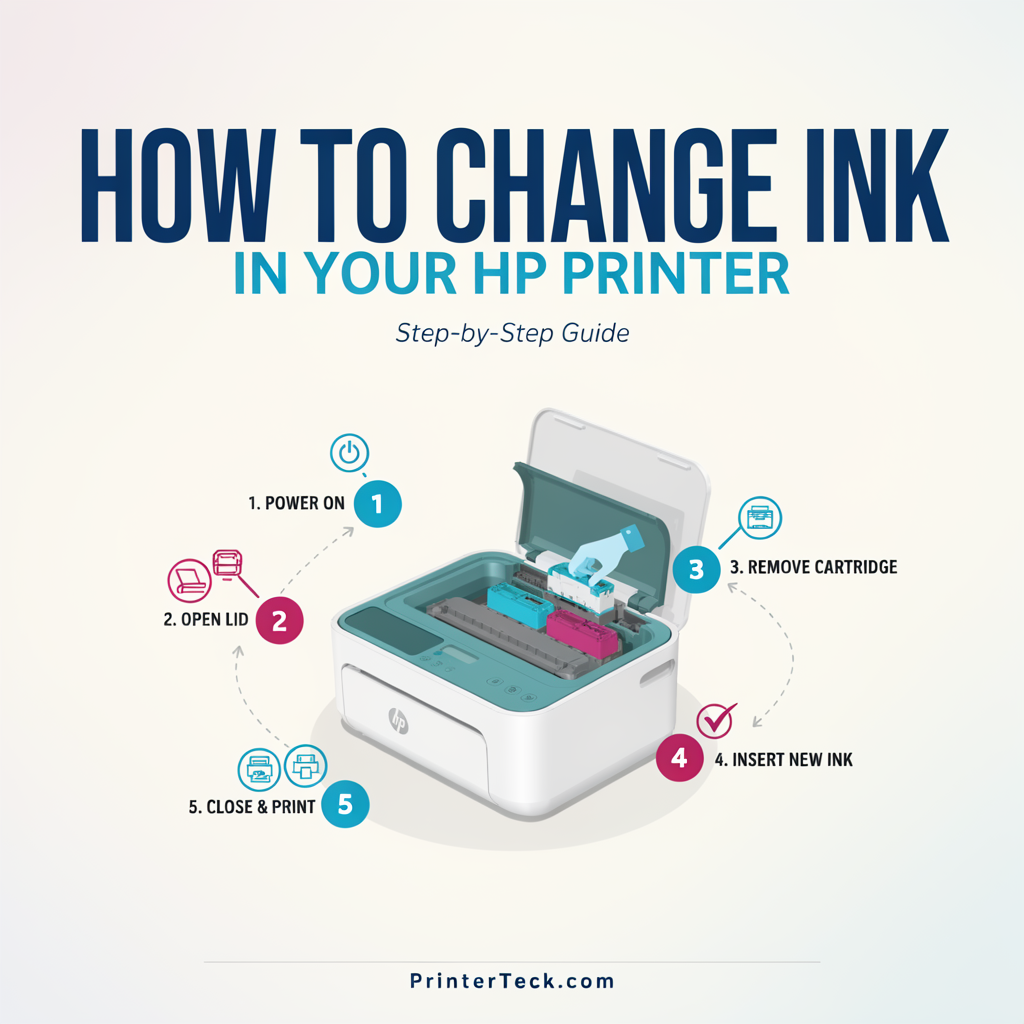
How to Change Ink in HP Printer: Step-by-Step Guide
Changing ink in an HP printer is usually straightforward, but the exact method depends on whether the printer uses two cartridges or four individual cartridges.
Many HP DeskJet and ENVY printers use one Black cartridge and one Tri-colour cartridge. OfficeJet and OfficeJet Pro models commonly use separate Black, Cyan, Magenta and Yellow cartridges. Older Photosmart printers may use four or five individual cartridges.
This guide explains how to change ink in an HP printer safely, how to identify the correct cartridge and what to do if the printer does not recognise the replacement.
How to Change Ink in HP Printer
Important: HP cartridge numbers vary by printer and sales region. Check the label inside the cartridge-access area or the existing cartridge before ordering. A cartridge advertised for a similar American printer may not work in a UK model.
Quick Answer: How Do You Change Ink in an HP Printer?
To replace an HP ink cartridge:
- Switch on the printer.
- Load a few sheets of plain A4 paper.
- Open the cartridge-access door.
- Wait for the carriage to stop moving.
- Release and remove the empty cartridge.
- Unpack the replacement and remove its protective tape or cap.
- Avoid touching its contacts and ink nozzles.
- Insert it into the correct slot until secure.
- Close the access door.
- Follow any alignment instructions displayed by the printer or HP app.
Never move the carriage by force or change cartridges while it is still moving.
Before You Start
You will need:
- The correct replacement cartridge
- Plain A4 paper
- A clean, well-lit working area
- The printer switched on and connected to power
- The model-specific instructions if the cartridge layout is unfamiliar
Wash and dry your hands. Keep the new cartridge sealed until you are ready to install it, as exposed contacts and nozzles can be damaged or contaminated.
Place scrap paper near the printer if you are concerned about ink transfer, but do not put paper inside the machine beneath the carriage.
Find the Correct HP Ink Cartridge
Check at least two of the following:
- The number printed on the existing cartridge
- The label inside the cartridge-access door
- The printer’s full model number
- The supplies page in the HP app
- The official HP support or supplies page for the exact UK model
Common UK HP cartridge families include:
- HP 301 and 301XL
- HP 302 and 302XL
- HP 303 and 303XL
- HP 304 and 304XL
- HP 305 and 305XL
- HP 308 and 308XL
- HP 62 and 62XL
- HP 364 and 364XL
- HP 903 and 903XL
- HP 912 and 912XL
- HP 924 and 924e
- HP 953 and 953XL
- HP 963 and 963XL
- HP 937 and 937e
Do not rely only on the printer family. Two HP ENVY or OfficeJet printers can use different cartridge numbers.
For detailed model matching, use the HP Ink Cartridge Compatibility Chart UK.
Identify Your HP Cartridge System
Open the normal cartridge-access door and look at the arrangement after the carriage stops.
| Cartridge system | Typical layout | Common printer ranges |
|---|---|---|
| Two-cartridge | Black plus Tri-colour | DeskJet, ENVY, Tango and selected OfficeJet models |
| Four-cartridge | Black, Cyan, Magenta and Yellow | OfficeJet and OfficeJet Pro models |
| Four- or five-cartridge photo system | Pigment Black plus individual colours, sometimes Photo Black | Older Photosmart and selected photo printers |
If the printer has ink tanks that are filled from bottles, it is an HP Smart Tank—not a cartridge printer. Do not follow cartridge-removal instructions for a tank model.
How to Change Ink in a Two-Cartridge HP Printer
This layout is common in printers using HP 301, 302, 303, 304, 305 and similar families.
1. Switch On the Printer
Press the power button and let the printer finish starting. The carriage normally moves into an accessible replacement position only when the machine has power.
Do not unplug the printer to stop the carriage.
2. Load Plain Paper
Place several sheets of clean A4 paper in the input tray. Some printers automatically print an alignment page after a cartridge is installed.
3. Open the Cartridge-Access Area
Depending on the model, you may need to:
- Lift the scanner unit
- Lower a front access door
- Open an internal cartridge door
Use only the handles or recessed areas designed for opening. Wait until the carriage becomes silent and stationary.
4. Release the Old Cartridge
Most two-cartridge systems release in one of two ways:
- Press the cartridge down gently and pull it towards you.
- Lift a small retaining lid, then pull the cartridge out.
Support the cartridge without touching its copper-coloured contacts or nozzle plate.
5. Check Which Slot You Are Using
On many models, the Tri-colour cartridge fits on the left and Black on the right, but this is not universal.
Follow the symbols or colour markings inside your printer rather than assuming the position.
6. Prepare the New Cartridge
Remove the cartridge from its packaging. Pull away only the specified protective tape using its tab.
Do not:
- Touch the electrical contacts
- Touch the ink nozzles
- Reattach removed tape
- Use scissors near the cartridge
- Remove labels or parts not identified in the instructions
- Leave the cartridge exposed for a long period
7. Install the New Cartridge
Hold it by its plastic sides. Position it at the same angle as the cartridge you removed, slide it into the correct slot and press until it clicks or is firmly seated.
If the model uses a retaining lid, close the lid fully.
Do not force the cartridge. If it will not fit, recheck its number, orientation and slot.
8. Close the Printer
Close the inner cartridge door, front door or scanner unit. Keep your hands clear while the carriage moves.
The printer may spend a short time initialising or servicing the new cartridge.
9. Align the Cartridges
If an alignment page prints:
- Wait for the page to finish.
- Place it on the scanner glass in the orientation shown.
- Close the scanner lid.
- Press the indicated Scan, Start or OK button.
Some printers complete alignment automatically or through the HP app. Do not confuse an alignment page with a normal test print.
How to Change Ink in a Four-Cartridge HP Printer
Many HP OfficeJet and OfficeJet Pro printers use separate Black, Cyan, Magenta and Yellow cartridges. Examples include printers using HP 903, 912, 953 or 963 families.
1. Switch On and Open the Access Door
Turn on the printer, then open its cartridge-access door. Wait until the carriage reaches the replacement position and becomes silent.
Never place your hand in the carriage path while it is moving.
2. Identify the Cartridge to Replace
Check the display or HP app for the indicated colour. Match it to the markings above or beside the slots:
- BK or K: Black
- C: Cyan
- M: Magenta
- Y: Yellow
You do not normally need to replace the other colours at the same time.
3. Release the Empty Cartridge
On many OfficeJet models, press the front of the cartridge inward to release it, then pull it towards you. Other models use a small latch.
Follow the physical release designed for the printer. Do not lever the cartridge with a tool.
4. Prepare the Replacement
Remove it from its packaging and take off the orange cap, pull tab or protective material exactly as shown.
Ink may be present near the outlet after the cap is removed. Hold the cartridge by its sides and keep the outlet away from clothing and furniture.
5. Fit It in the Matching Colour Slot
Slide the cartridge into the correctly coloured position and press until it clicks.
A cartridge installed in the wrong colour position can produce an error and contaminate the ink system on some designs. Check the label before pressing it home.
6. Close the Door and Confirm
Close the access door and respond to any on-screen prompt. The printer may check the cartridges, run a short maintenance cycle or offer an alignment procedure.
Replacing Ink in an HP 364 Printer
HP 364 printers can use either four or five cartridges, depending on the model.
A four-cartridge machine typically uses:
- Black
- Cyan
- Magenta
- Yellow
Selected photo models also use Photo Black.
Before buying a multipack, count the cartridge positions and check the official specification. A five-cartridge HP 364 pack is not necessary for a printer with only four slots.
Install each colour only in its labelled position. Standard and XL cartridges from the correct family can generally be mixed, subject to the exact printer specifications.
Can You Replace Only One HP Cartridge?
With a four-cartridge system, you can normally replace only the empty colour.
With a two-cartridge printer, replace either Black or Tri-colour as required. However, some printers need both cartridges present and recognised before they will print.
A Tri-colour cartridge contains Cyan, Magenta and Yellow in one unit. If one chamber is empty or faulty, the complete Tri-colour cartridge may need replacement.
Can You Mix Standard and XL Cartridges?
Many HP printers accept a standard cartridge and the corresponding XL version together.
For example, a compatible printer may use:
- HP 305XL Black with HP 305 Tri-colour
- HP 903XL Black with standard HP 903 colours
- HP 953XL Cyan with standard HP 953 Black, Magenta and Yellow
The base family number must match. XL means higher capacity; it does not make a different cartridge family compatible.
Never mix regional counterparts such as HP 903 and HP 902 merely because they look similar.
Original, Compatible and Remanufactured Cartridges
Original HP Ink
Original cartridges are produced under the HP brand for a specified printer family and region.
Compatible Ink
A compatible cartridge is made by another manufacturer for a particular HP cartridge family. Check the exact model, cartridge number, supplier guarantee and current compatibility information.
Remanufactured Ink
A remanufactured cartridge uses a previously used cartridge body that has been cleaned, refilled and prepared for reuse.
Whichever type you choose, the installation method is generally similar. Recognition and ink-level features can differ, particularly when cartridge electronics, printer firmware or subscription conditions are involved.
For a broader comparison, read compatible versus original printer ink.
HP Instant Ink Cartridges
HP Instant Ink cartridges are linked to an active subscription and supported printer.
Important points:
- They are not ordinary retail cartridges.
- They may be physically larger than standard cartridges.
- They may stop working when the subscription ends.
- They should not be sold or transferred as unused retail ink.
- Retail cartridges can normally be installed when leaving the service, subject to the printer’s requirements.
If a subscription cartridge is rejected, check the printer’s internet connection, HP account status and Instant Ink messages before replacing it.
Do not return a subscription cartridge through an ordinary retailer returns process unless instructed.
Setup Cartridges
Some new HP printers require cartridges marked SETUP during initial installation. These cartridges prepare the ink system and should not be confused with normal replacements.
If a new printer requests setup cartridges:
- Use the set supplied with that printer.
- Do not substitute ordinary retail cartridges unless HP’s instructions permit it.
- Contact the retailer or HP if the original setup set is missing.
After initialisation, use the standard or XL retail family specified for the model.
Do not buy used setup cartridges online. They may already be associated with another printer or depleted.
Should the Printer Be On When You Change Ink?
For most cartridge-based HP printers, yes. The printer should be switched on so the carriage moves to the correct replacement position.
Opening the door while the printer is off may leave the carriage locked or inaccessible. Forcing it can damage the drive mechanism or positioning system.
Always follow the exact model instructions if they tell you to do something different.
Do You Need to Replace Every Colour?
Usually not. Replace only the cartridge indicated as empty, faulty or unrecognised.
Exceptions can include:
- A two-cartridge printer that requires both cartridges
- A Tri-colour cartridge with one exhausted colour chamber
- A printer that refuses to operate until every position contains a recognised cartridge
- Several cartridges reaching empty at the same time
Do not replace a complete four-colour set simply because one colour is low unless you prefer to do so for convenience.
What to Do After Installing New HP Ink
Wait for Initialisation
The printer may move the carriage, check its supplies or run a brief maintenance routine. Do not open the cover during this process.
Complete Alignment
Follow the control-panel or HP app instructions. Alignment helps the printer position Black and Colour output accurately.
Print a Test Page
Print a printer-status report, print-quality diagnostic page or simple document containing text and colour.
Check for:
- Missing colours
- Horizontal lines
- Blurred or doubled text
- White gaps
- Incorrect colour balance
- Cartridge warnings
Run Cleaning Only If Needed
If the output has missing lines, run one normal cleaning cycle and print another quality report.
Avoid repeated deep-cleaning cycles. They consume significant ink and will not repair a damaged or incompatible cartridge.
New HP Cartridge Not Recognised
If the printer displays Incompatible Cartridge, Cartridge Problem, Missing or Damaged Cartridge or a similar message:
- Confirm the cartridge number.
- Confirm it is intended for the UK or European printer version.
- Check that all protective material has been removed.
- Make sure it is in the correct slot.
- Remove and reinstall it once.
- Inspect its electrical contacts for damage.
- Restart the printer correctly.
- Test another suitable cartridge if available.
Do not repeatedly wipe the contacts. If cleaning is necessary, use a clean, dry, lint-free material and avoid the ink nozzles.
For detailed steps, see why your printer is not recognising an ink cartridge.
Cartridge Installed but Ink Level Still Shows Low
Possible reasons include:
- The printer has not completed initialisation.
- The cartridge was previously used.
- A compatible or remanufactured cartridge cannot report its level normally.
- The cartridge electronics are damaged.
- The wrong cartridge was installed.
- The software is displaying old status information.
Close and reopen the HP app or printer status screen after the printer finishes checking the cartridge. Print an internal supplies report where available.
If the printer can print normally but cannot monitor ink, ask the cartridge supplier whether the behaviour is expected for that product.
Printer Produces Blank Pages After Replacement
Check that:
- The protective tape or cap was removed.
- The ink outlet or nozzle has not been covered.
- The cartridge is securely seated.
- The correct colour is in each slot.
- The cartridge is not empty, dried or defective.
Print a nozzle or quality report and run one cleaning cycle. If an entire colour remains absent, replace the affected cartridge before assuming the printhead has failed.
Ink Leaking During Replacement
A small amount of ink around an opened outlet can occur, but significant leakage is not normal.
If a cartridge leaks:
- Keep it upright.
- Place it in a sealed disposable bag.
- Wipe external spills promptly using appropriate protection.
- Keep ink away from eyes, mouth, children and pets.
- Contact the supplier for a replacement.
Do not install a cracked or heavily leaking cartridge. Do not rinse an ink cartridge under a tap.
If ink reaches electrical contacts or internal mechanisms, stop and seek model-specific advice.
Common Ink-Replacement Mistakes
- Buying by printer appearance instead of model number
- Using a US cartridge number in a UK printer
- Replacing a drum or printhead instead of the ink cartridge
- Touching electrical contacts or nozzles
- Removing the wrong seal or label
- Fitting Black and Tri-colour in assumed positions
- Installing individual colours in the wrong slots
- Forcing the carriage while the printer is off
- Closing the cover before the cartridge clicks into place
- Discarding Instant Ink cartridges incorrectly
- Attempting initial setup without SETUP cartridges
- Running many cleaning cycles immediately
- Assuming XL belongs to a different printer
- Mixing cartridge families with similar shapes
How to Store Spare HP Ink
Keep unopened cartridges:
- In their original sealed packaging
- Upright where the packaging indicates
- At a stable indoor temperature
- Away from direct sunlight
- Away from radiators and freezing conditions
- Out of reach of children
Check the packaging date and supplier’s shelf-life guidance. Do not open a spare cartridge merely to inspect it.
Once opened, install it promptly. Storing a partly used cartridge outside the printer can allow its nozzles to dry.
Recycling Used HP Cartridges in the UK
Do not place a leaking cartridge loosely into household recycling.
Possible recycling routes include:
- HP’s current cartridge-return programme, where eligible
- Retailer collection schemes
- Local recycling facilities that accept ink cartridges
- Supplier-provided return envelopes or boxes
- Charity cartridge-recycling programmes
Check the current acceptance rules before sending compatible or remanufactured cartridges, as schemes may accept only particular brands or cartridge types.
Frequently Asked Questions
How do I know which HP ink cartridge to buy?
Check the number on the existing cartridge or the label inside the access door. Confirm it against the official specification for the printer’s complete UK model.
How do I open an HP printer to change the ink?
Depending on the model, lift the scanner unit, open a front access door or open a dedicated cartridge door. Switch the printer on first and use only the intended handles.
Should I turn off my HP printer before changing ink?
Usually no. Most HP printers need to be on so the carriage moves into the replacement position. Wait until it stops before touching a cartridge.
Which side does the Black cartridge go on?
The position varies. Many two-cartridge printers place Tri-colour on the left and Black on the right, but always follow the symbols inside your exact printer.
Can I replace just the Black HP cartridge?
Yes, if Black is the only cartridge requiring replacement. Some two-cartridge printers still require a recognised Tri-colour cartridge to remain installed.
Can I replace one colour in an HP OfficeJet?
If it uses individual Black, Cyan, Magenta and Yellow cartridges, you can normally replace only the indicated colour.
Can I use an XL cartridge instead of standard ink?
Usually yes when the base family matches and the exact printer supports it. HP 305XL, for example, is the higher-capacity version of HP 305.
Can standard and XL HP cartridges be used together?
Many models allow this. The cartridges must belong to the same supported family, colour and region.
Why will the new cartridge not click into place?
It may be incorrectly oriented, in the wrong slot, still have protective material attached or be the wrong cartridge family. Do not force it.
Why does my HP printer reject a new cartridge?
Possible causes include the wrong cartridge number, regional incompatibility, protective tape, incomplete installation, damaged contacts, a faulty cartridge, Instant Ink conditions or firmware-related recognition.
Do new HP cartridges need alignment?
Many two-cartridge printers request alignment after replacement. Follow the printed page, control-panel or HP app instructions.
Why is my HP printer printing blank pages with new ink?
Protective tape may remain, the cartridge may not be seated, its nozzles may be blocked or the cartridge may be faulty. Print a quality report and run one normal cleaning cycle.
Can I print with only one cartridge installed?
Some two-cartridge models offer a single-cartridge or reserve mode, while others require both cartridges. Individual-cartridge printers normally require every position to be installed and recognised.
Are HP Instant Ink cartridges the same as normal cartridges?
No. They are linked to an eligible printer and active subscription. They may stop working after the subscription ends.
What are HP SETUP cartridges?
They are cartridges supplied with certain new printers to initialise the ink system. Where required, they must be used during first-time setup before normal retail cartridges.
How long should cartridge replacement take?
The physical change usually takes a few minutes. Allow additional time for cartridge checking, alignment and a test print.
Should I clean the printhead after every ink change?
No. Run cleaning only if a quality report shows missing lines or colours. Unnecessary cleaning wastes ink.
Final Ink-Replacement Checklist
Before printing, confirm that:
- The cartridge number matches the exact UK printer
- The printer was switched on during replacement
- The carriage stopped before you touched it
- All required protective material was removed
- Contacts and nozzles were not touched
- Black, Tri-colour or individual colours are in the correct slots
- Every cartridge is fully seated
- The access door is closed
- Alignment was completed if requested
- A test page prints correctly
- Used cartridges have been stored safely for recycling
Changing HP ink correctly is mainly about identifying the right cartridge, letting the printer position the carriage and avoiding contact with the sensitive electrical and ink-delivery areas. When the cartridge is installed securely, alignment and a simple test page should confirm that the printer is ready to use.