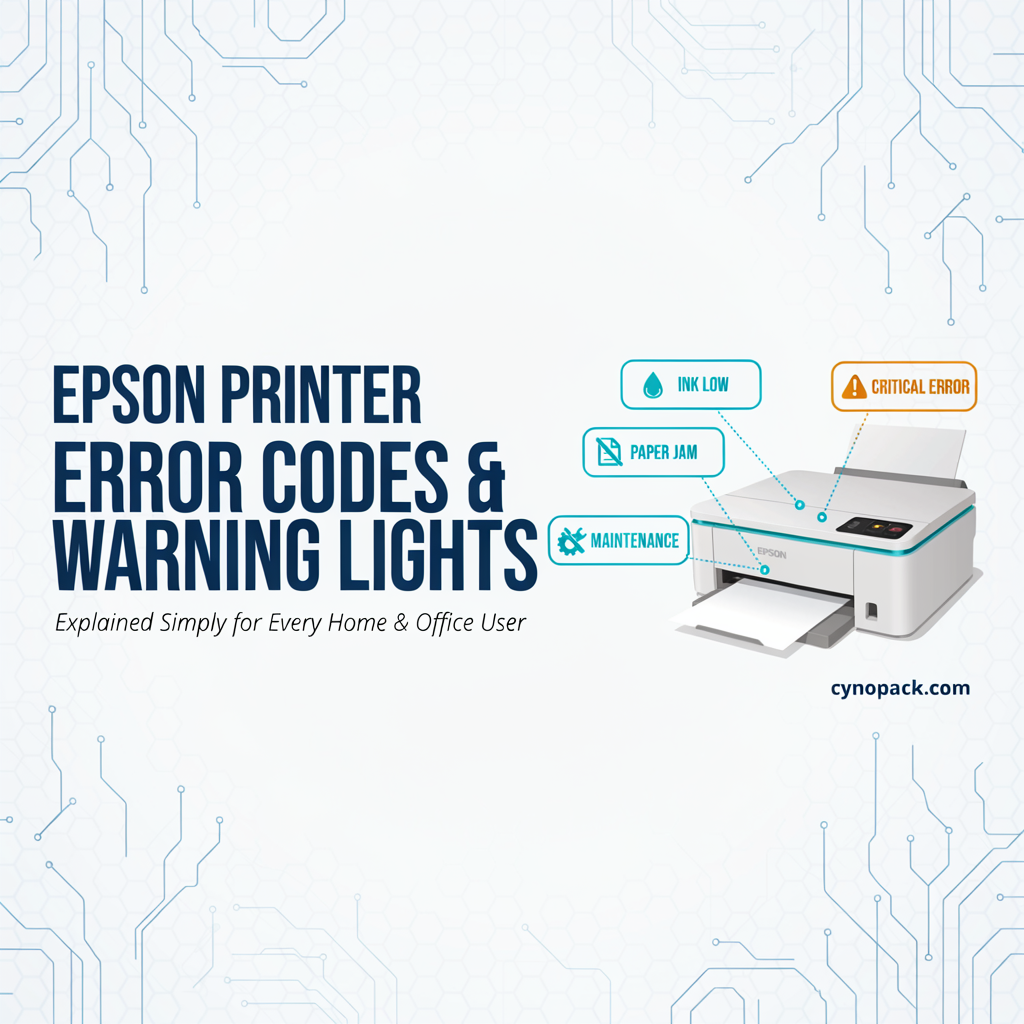
Epson Printer Error Codes & Warning Lights Explained
An Epson printer error can appear as a code on the LCD screen, a written message on a touchscreen or a combination of flashing lights. The warning may indicate something simple, such as an empty paper tray, or a more serious problem involving the carriage, scanner, firmware or internal ink pads.
The challenge is that Epson error codes are model-specific. An Expression Home printer, WorkForce office printer and EcoTank model may use different codes or light combinations for similar problems.
This guide explains common Epson printer error codes and warning lights, including:
- Epson E-series error codes
- W-series warning codes
- I-series information codes
- Paper and ink warning lights
- Cartridge-recognition errors
- Paper jams and carriage faults
- Waste-ink-pad and maintenance-box messages
- EcoTank ink-level warnings
- Recovery Mode
- Common
0xprinter errors - Wi-Fi and network lights
- Safe troubleshooting steps
Important: Always record the complete error code and check the user guide for your exact Epson printer model. Do not replace parts or install firmware based only on a code found for a different Epson model.
Epson Error Codes: Quick Lookup Chart
| Epson code or warning | Common meaning | First action |
|---|---|---|
| E-01 | General printer error | Check for paper or packing material and restart |
| E-02 | Scanner error | Restart and test the scanner again |
| E-10/E-11 | Ink pad or internal service component warning on selected models | Check exact message and contact Epson if required |
| E-12 | Borderless printing ink pad needs replacement on supported models | Contact Epson or an authorised service provider |
| W-01 | Paper jam | Remove jammed paper safely |
| W-02/W-03 | Paper jam or paper-feed issue on selected models | Inspect the specified paper path |
| W-10 | Cartridge problem on selected models | Check and reinstall the indicated cartridge |
| W-11/W-14 | Ink pad nearing the end of its service life | Prepare for authorised service |
| W-12 | Cartridge installed incorrectly | Press the cartridge down firmly |
| W-13 | Cartridge not recognised | Check compatibility and reinstall or replace it |
| I-22 | Wi-Fi setup using WPS button | Press the router’s WPS button |
| I-23 | Wi-Fi setup using WPS PIN | Enter the displayed PIN into the router |
| I-31 | Wi-Fi Auto Connect setup | Start setup software on the computer |
| I-41 | Paper Setup Auto Display disabled | Enable it if AirPrint or related features are required |
| I-60 | WSD scan feature unavailable or unsupported | Check Windows and network compatibility |
| Recovery Mode | Firmware update failed | Reinstall model-specific firmware by USB |
| Service Required | Internal printer component or ink pad needs attention | Record code and check model-specific support |
| Ink light flashing | Ink low or cartridge needs attention | Check ink status and prepare a replacement |
| Ink light solid | Ink empty or cartridge error | Replace or reinstall the indicated cartridge |
| Paper light solid | Paper tray empty or paper not loaded correctly | Load paper and press the appropriate button |
| Paper light flashing | Paper jam or feed problem | Clear the paper path |
| Power and error lights flashing | General or mechanical printer fault | Switch off, inspect and restart |
| All lights flashing | Serious error, obstruction or service condition | Record the pattern and check the user guide |
| 0x97/0x9A | Internal printer error on selected models | Restart and check for obstructions |
| 0xEA | Carriage or initialisation problem on selected models | Inspect for packing material or blockage |
| 0xF1 | Mechanical, carriage or paper-feed fault on selected models | Inspect the paper and carriage paths |
These descriptions are starting points rather than universal definitions. The exact meaning depends on the printer model and firmware.
Before Troubleshooting an Epson Error
Record the following before switching off the printer:
- Complete error code
- Full wording of the message
- Printer’s exact model number
- Which lights are on
- Which lights are flashing
- Whether lights flash together or alternately
- Whether the error appeared during start-up
- What happened before the error
- Whether ink, paper or a maintenance box was recently replaced
- Whether firmware was being updated
- Whether the printer can still scan or copy
Take a photograph or short video of the lights if the pattern is difficult to remember.
How Epson Error Codes Are Structured
Many Epson printers use letters to indicate the type of notification.
E codes
An E code generally identifies an error that may prevent normal printer operation.
Examples include:
- E-01 – printer error
- E-02 – scanner error
- E-12 – borderless ink pad replacement required on selected models
W codes
A W code generally identifies a warning or condition requiring attention.
Examples include:
- W-01 – paper jam
- W-12 – cartridge installed incorrectly
- W-13 – cartridge not recognised
- W-14 – borderless ink pad nearing its limit
I codes
An I code normally provides information or setup instructions rather than reporting failed hardware.
Examples include:
- I-22 – WPS push-button setup
- I-23 – WPS PIN setup
- I-31 – Wi-Fi Auto Connect
- I-41 – Paper Setup Auto Display disabled
- I-60 – WSD-related information
The same letter and number may not be used across every Epson model.
Epson Error E-01: General Printer Error
E-01 normally means that the printer has detected a general mechanical or internal error.
Possible causes include:
- Jammed paper
- Torn paper inside the printer
- Protective packaging left inside
- An obstructed printhead carriage
- A foreign object in the paper path
- A cover or scanner unit not closed properly
- Internal mechanical failure
For models such as the Epson WF-2910 and WF-2930, Epson advises opening the scanner unit, removing paper or protective material and then restarting the printer.
How to fix Epson E-01
- Cancel any active print job.
- Switch off the printer.
- Disconnect the power cable.
- Remove loose paper from the input and output trays.
- Open the scanner unit or cartridge-access area.
- Look for jammed paper, torn scraps or packaging material.
- Check the accessible carriage path.
- Close all covers securely.
- Reconnect the power.
- Switch on the printer.
Do not force the carriage or dismantle internal covers.
If E-01 returns immediately during start-up, record the code and contact Epson support or a printer technician.
Epson Error E-02: Scanner Error
E-02 generally indicates that the scanner mechanism cannot initialise or operate correctly.
Possible causes include:
- Temporary scanner control failure
- Obstruction in the scanner mechanism
- Scanner carriage unable to return home
- Internal cable problem
- Sensor failure
- Main-board or scanner-unit fault
How to fix Epson E-02
- Switch the printer off.
- Disconnect it for approximately 60 seconds.
- Check for visible packing material around the scanner.
- Reconnect and restart the printer.
- Try making a copy directly from the control panel.
- Test scanning through Epson Scan 2 or Epson Smart Panel.
If both direct copying and computer scanning fail, the problem is more likely inside the printer than within the computer software.
Repeated grinding or clicking can indicate a mechanical scanner fault. Stop using the printer and arrange repair.
Epson E-10 and E-11 Errors
On selected Epson models, E-10 or E-11 can refer to an internal ink pad or another service-life component.
However, these codes are not universal. Some printers use different numbers or written messages for the same condition.
Possible messages include:
- The printer’s ink pad is nearing the end of its service life
- The printer’s ink pad is at the end of its service life
- Parts inside the printer have reached the end of their service life
- Service Required
- Contact Epson Support
Check the complete written message rather than relying only on the number.
Epson Error E-12: Borderless Printing Ink Pad
On supported models, E-12 means the borderless printing ink pad needs replacement.
The borderless ink pad collects small amounts of surplus ink created when the printer prints beyond the edge of the paper.
Epson identifies this pad as non-user-serviceable on affected models. Borderless printing may be disabled, although printing with normal borders may remain available.
What to do about E-12
- Do not continue resetting the message without addressing the pad.
- Check the exact model’s user guide.
- Contact Epson or an authorised service provider.
- Ask for a repair estimate before approving work.
- Compare the cost of servicing with the value and condition of the printer.
Do not confuse a borderless ink pad with a replaceable maintenance box.
Epson Warning W-01: Paper Jam
W-01 commonly indicates a paper jam.
The jam may be located:
- In the rear paper feed
- Beneath the scanner unit
- Around the printhead carriage
- Inside the cassette
- In the duplex unit
- Near the output rollers
- In the automatic document feeder
How to fix Epson W-01
- Follow the on-screen instruction if available.
- Switch off and unplug the printer when required.
- Remove loose paper from all trays.
- Open the indicated paper-path cover.
- Pull jammed paper slowly in the normal direction of travel.
- Remove all torn pieces.
- Check beneath the carriage.
- Close every cover securely.
- Reload a small stack of suitable paper.
- Restart the printer.
Do not use knives, screwdrivers or other sharp objects inside the printer.
If the error returns when no paper is visible, check for:
- Tiny paper scraps
- Labels separated from backing sheets
- Foreign objects
- Dirty pickup rollers
- Damaged paper sensors
- An obstructed carriage
Epson W-02 and W-03 Errors
On selected models, W-02 and W-03 refer to paper jams in different parts of the printer.
The exact area varies and may include:
- Rear paper feed
- Paper cassette
- Automatic document feeder
- Duplex path
- Internal paper transport
Use the printer’s display or model-specific guide to determine the correct access point.
Do not assume that W-02 or W-03 identifies the same location on every Epson printer.
Epson Warning W-10: Cartridge Problem
On some Epson models, W-10 indicates that an ink cartridge is empty, incorrectly installed or otherwise requires attention.
Check:
- The cartridge number
- The indicated colour
- Protective material
- Cartridge position
- Electronic chip condition
- Whether the cartridge has clicked into place
If the printer names a specific colour, troubleshoot that cartridge first.
Epson Warning W-12: Cartridge Installed Incorrectly
W-12 generally means that a cartridge is not seated properly.
Epson’s instructions for supported models advise pressing the cartridge down firmly.
How to fix W-12
- Open the cartridge-access area.
- Wait until the printhead carriage stops.
- Identify the affected cartridge.
- Press it down gently until it clicks.
- Check that its top sits level with the others.
- Close the scanner unit or cover.
- Allow the printer to check the cartridges.
If the warning remains, remove and reinstall the cartridge using the printer’s replacement procedure.
Epson Warning W-13: Cartridge Not Recognised
W-13 means that the printer cannot recognise the indicated ink cartridge.
Possible causes include:
- Incorrect cartridge family
- Cartridge intended for another printer
- Cartridge not installed fully
- Dirty electronic chip
- Damaged chip
- Defective cartridge
- Protective packaging not removed
- Cartridge intended for another region
- Firmware-related recognition change
- Damaged contacts inside the carriage
How to fix Epson W-13
- Confirm the complete printer model.
- Check the cartridge number.
- Remove the indicated cartridge.
- Inspect it for packaging or damage.
- Avoid touching the chip.
- Reinstall it firmly.
- Close the printer and wait for recognition.
- Test another correct cartridge if available.
Epson advises checking that the product code is compatible with the exact printer and reinstalling the cartridge correctly. If the error remains after installing a suitable cartridge, the printer may require support.
For model-to-cartridge help, use our Epson Ink Cartridge Compatibility Chart UK.
Epson W-11 and W-14 Ink-Pad Warnings
On selected models, these warnings mean an ink pad is nearing the end of its calculated service life.
For example, Epson lists W-14 as a warning that the borderless printing ink pad is approaching its limit on the WF-2910/WF-2930 family. Printing may continue temporarily, but the message returns until the pad is replaced.
This early warning gives you time to:
- Contact Epson
- Request a repair estimate
- Check the printer’s age and condition
- Decide whether servicing is economical
- Avoid being left without a printer when the final stop message appears
Epson Information Code I-22: WPS Push-Button Setup
I-22 is a Wi-Fi setup instruction rather than a hardware failure.
It means the printer is waiting for you to start WPS push-button setup.
What to do
- Find the WPS button on the router.
- Press it as instructed by the router manufacturer.
- Confirm or continue setup on the printer.
- Wait for the Wi-Fi light to become stable.
Not every router has a physical WPS button. If yours does not, use Epson’s standard wireless setup method.
Epson Information Code I-23: WPS PIN Setup
I-23 means the printer is displaying a WPS PIN.
Enter that PIN into the router or access point within the time allowed. On supported Epson models, the PIN must usually be entered within two minutes.
Epson Information Code I-31: Wi-Fi Auto Connect
I-31 appears when the printer expects Wi-Fi Auto Connect setup through Epson software.
Install or open the correct Epson setup software on the computer, start wireless configuration and confirm the process on the printer.
Epson Information Code I-41: Paper Setup Auto Display Disabled
I-41 indicates that Paper Setup Auto Display has been disabled.
On supported models, disabling this setting can prevent features such as AirPrint from being available.
To restore it, open the printer’s paper or general settings and enable Paper Setup Auto Display.
The menu name can vary by model.
Epson Information Code I-60: WSD Scan Information
I-60 relates to WSD—Web Services for Devices—on supported Windows computers.
It may appear when:
- The operating system does not support the feature
- The computer language or Windows configuration is incompatible
- The printer and computer are not connected correctly
- Network discovery is disabled
- WSD scanning has not been configured
This code does not necessarily mean the physical scanner is defective.
Epson Ink Warning Lights Explained
Printers without a full LCD often communicate through coloured lights.
The meaning depends on whether a light is:
- Off
- Solid
- Flashing slowly
- Flashing quickly
- Flashing with another light
- Alternating with another light
Epson Ink Light Flashing
A flashing Ink or Maintenance light often means ink is low and a replacement should be prepared.
Epson explains that a flashing red or amber Ink light usually indicates a low cartridge, while a solid light or error message generally indicates that the cartridge is empty and requires replacement.
Check Epson Status Monitor, Epson Smart Panel or the printer display to identify the affected colour.
Epson Ink Light Solid
A solid Ink light can mean:
- One or more cartridges are empty
- A cartridge is not recognised
- A cartridge is installed incorrectly
- The printer requires cartridge replacement
- Cartridge initialisation has not completed
Do not replace every cartridge automatically. Identify the colour reported by the printer.
Epson Paper Light Solid
A solid Paper light commonly means:
- No paper is loaded
- Paper was not fed correctly
- The tray is not inserted properly
- Paper settings require confirmation
Load suitable paper, adjust the guides and press the paper or resume button if instructed.
Epson Paper Light Flashing
A flashing Paper light often indicates:
- Paper jam
- Multiple-sheet feed
- Paper loaded incorrectly
- Paper stuck in the rear path
- A feeding problem
Remove the paper stack, inspect the paper path and reload clean, flat sheets.
Epson Power Light Flashing
A flashing Power light does not always indicate a fault.
The printer may be:
- Starting up
- Processing a print job
- Charging ink
- Cleaning the printhead
- Replacing ink
- Shutting down
- Updating firmware
Do not switch off the printer while the power light is flashing during a recognised maintenance or ink-charging operation. Epson warns that turning off the printer during cartridge replacement or ink charging can waste ink.
If the Power light flashes indefinitely with an error light, check the combination in the model’s manual.
Epson Paper and Ink Lights Flashing Together
When Paper and Ink lights flash simultaneously, the printer may have detected:
- General printer error
- Carriage obstruction
- Paper jam
- Foreign object
- Internal mechanical problem
- Ink-pad service condition
The precise interpretation varies considerably between models.
Switch off the printer, inspect all normal user-access areas and restart it. If the pattern returns, search the model number together with “flashing lights.”
Epson Paper and Ink Lights Flashing Alternately
On many older Epson printers, alternating Paper and Ink lights can indicate a service condition such as:
- Carriage error
- Internal waste-ink-pad limit
- Mechanical obstruction
- Printer requiring maintenance
On some older Stylus models, Epson documentation describes alternating Paper and Ink lights as a carriage error caused by jammed paper or foreign material preventing the carriage from returning home.
Because other models use a similar pattern for ink-pad service warnings, confirm the exact meaning in the relevant manual.
All Epson Lights Flashing
All lights flashing can indicate a serious or unclassified printer error.
Possible causes include:
- Carriage obstruction
- Paper inside the mechanism
- Internal component failure
- Ink-pad limit
- Firmware problem
- Scanner initialisation failure
- Maintenance box problem
- Main-board fault
What to do
- Record which lights flash.
- Note whether they flash together or alternately.
- Switch off the printer.
- Disconnect power.
- Inspect for paper and foreign objects.
- Check that covers and trays are installed correctly.
- Reconnect and restart.
- Check Epson Status Monitor or Smart Panel.
- Consult the exact user guide if the pattern returns.
Epson “Ink Cartridge Could Not Be Recognised”
This is one of the most common Epson error messages.
Possible causes include:
- Wrong cartridge number
- Cartridge belongs to another family
- Cartridge chip is dirty or damaged
- Cartridge is not fully seated
- Cartridge is defective
- Cartridge was installed with the power off
- Printer contacts are damaged
- Firmware changed recognition behaviour
- Regional cartridge mismatch
Basic recognition troubleshooting
- Confirm the exact cartridge number.
- Use the printer’s cartridge-replacement command.
- Remove the affected cartridge.
- Check for remaining tape or packaging.
- Inspect the chip without touching it unnecessarily.
- Reinstall the cartridge firmly.
- Close the printer.
- Wait for the ink-checking process to finish.
Do not repeatedly remove every cartridge when only one colour is identified.
Read our detailed guide on why a printer is not recognising an ink cartridge if the error remains.
Epson “Incorrect Ink Cartridge” Message
This message means that the cartridge family, colour or regional version does not match the printer.
Common examples of incorrect substitutions include:
- Epson 603 instead of Epson 604
- Epson 18 instead of Epson 29
- Epson 405 instead of another WorkForce family
- A cartridge intended for a visually similar overseas model
The physical shape is not sufficient proof of compatibility. Check the number against the exact printer using the Epson UK Ink Finder. Epson states that its cartridge series are printer-specific and that similar-looking cartridges may use different chip technology or ink formulations.
Epson “Replace Ink Cartridge” Message
This message usually means:
- The cartridge is empty
- The cartridge cannot be recognised
- Ink has fallen below the printer’s safe operating reserve
- The cartridge has failed electronically
Install the correct replacement using the printer’s maintenance menu or cartridge-replacement button.
Avoid manually forcing the carriage away from its parked position.
Epson “Service Required” Message
A general Service Required message may indicate:
- Ink pad at the end of service life
- Borderless ink pad limit
- Mechanical failure
- Carriage fault
- Scanner problem
- Internal sensor error
- Main-board fault
Look for an accompanying code. “Service Required” alone is not enough to identify the component.
If the message appears with all lights flashing, record the complete light pattern before restarting.
Epson Waste Ink Pad Error
Epson inkjet printers use absorbent pads to collect ink that does not reach the paper.
Waste ink is generated during:
- Initial ink charging
- Printhead cleaning
- Automatic maintenance
- Borderless printing
- Some cartridge-replacement procedures
Messages can include:
- Parts inside your printer are at the end of their service life
- Ink pad is at the end of its service life
- Waste ink pad full
- Service Required
- Contact Epson Support
Epson explains that the printer stops before further use could allow ink to leak from saturated internal pads.
Can you reset an Epson waste-ink-pad error?
Resetting the counter without inspecting or replacing the ink pads does not remove the collected ink.
An unsafe reset can allow:
- Ink leakage
- Damage to furniture or flooring
- Internal contamination
- Electrical damage
- Unreliable printer operation
The appropriate repair depends on the model and whether its pad is designed to be serviced.
Epson Maintenance Box Warning
A maintenance box is a user-replaceable container that collects surplus ink on supported printers.
Messages may state:
- Maintenance box is nearing the end of its service life
- Maintenance box is at the end of its service life
- Replace maintenance box
- Maintenance box not recognised
- Maintenance box installed incorrectly
Maintenance box versus internal ink pad
| Message names | Normally user-replaceable? |
|---|---|
| Maintenance Box | Yes, on models designed with a replaceable box |
| Borderless Printing Ink Pad | Usually no |
| Parts Inside the Printer | Usually no |
| Internal Ink Pad | Usually requires service |
Epson advises checking the exact message because a maintenance box and a sealed internal ink pad are different components.
Before ordering, confirm the maintenance-box code for your exact printer.
Epson EcoTank Ink-Level Warnings
EcoTank printers use refillable ink tanks rather than ordinary cartridges.
Possible EcoTank messages include:
- Ink level may be low
- Refill ink tank
- Reset ink levels
- Ink level has not been reset
- Initial ink charging incomplete
- Check ink levels visually
- Insufficient ink to perform cleaning
Important EcoTank points
- Some models estimate ink levels rather than measuring them directly.
- The displayed level may need to be reset after refilling.
- Ink must remain above the lower line where specified.
- The correct bottle series must be used.
- Initial ink charging can take several minutes.
- Switching off during charging can waste ink or interrupt setup.
Epson notes that when a non-display EcoTank still shows an error after the ink-level reset procedure, the light may be reporting a different fault rather than an ink-level problem.
Do not reset the ink level without visually checking the tanks.
Epson Recovery Mode
Recovery Mode normally appears after a firmware update has failed or been interrupted.
Possible causes include:
- Printer switched off during update
- USB or network connection interrupted
- Computer shut down
- Wrong update package
- Update process failed
- Power loss
How to recover an Epson printer
- Do not repeatedly switch the printer on and off.
- Find the support page for the exact model.
- Download the Recovery Mode Firmware Update if Epson provides one.
- Connect the printer directly to the computer with the required USB cable.
- Disconnect unnecessary USB devices.
- Run the model-specific recovery updater.
- Do not unplug, power off or use the printer during the process.
- Wait for the update to finish completely.
On supported printers, Epson specifies that Recovery Mode firmware must be installed through USB rather than over the network.
Never install firmware intended for a similar-looking but different Epson model.
Epson Error 0x97
0x97 is reported by selected WorkForce and other Epson models as a general internal printer error.
It can be associated with:
- Internal hardware fault
- Carriage or printhead initialisation problem
- Sensor failure
- Control-board problem
- Paper or foreign-object obstruction
Because Epson does not use 0x97 identically across every model, avoid assuming that a particular component has failed without model-specific diagnosis.
What to do
- Record the complete code.
- Cancel print jobs.
- Switch off and unplug the printer.
- Inspect normal user-access areas.
- Remove visible paper or foreign objects.
- Restart the printer.
- Check the exact model’s support page.
If 0x97 returns immediately while the printer is disconnected from the computer and network, professional service may be necessary.
Epson Error 0x9A
0x9A generally represents an internal or mechanical error on selected Epson printers.
Possible areas include:
- Carriage movement
- Printhead positioning
- Sensor communication
- Paper transport
- Internal electronics
Do not purchase a replacement printhead or main board based solely on this code. First check for paper scraps, foreign objects and incorrectly installed components.
Epson Error 0xEA
On selected models, 0xEA can appear when the printer cannot initialise the carriage or detect its position correctly.
Possible causes include:
- Packing material left inside a new printer
- Carriage transportation lock still engaged
- Jammed paper
- Foreign object
- Incorrectly installed ink component
- Carriage unable to leave its home position
- Internal sensor or mechanical failure
What to do
- Switch off and unplug the printer.
- Check for blue transport tape or packing blocks.
- Inspect the paper and carriage paths.
- Check any transportation lock specified in the manual.
- Do not force the printhead carriage.
- Restart the printer after removing accessible obstructions.
Epson Error 0xF1
0xF1 can indicate a paper-feed, carriage, positioning or other mechanical error on selected models.
Start by checking:
- Paper path
- Rear feed
- Duplex unit
- Carriage area
- Torn paper
- Labels or foreign objects
- Recently installed cartridges
- Unusual grinding noises
If the code returns at start-up with no paper loaded, it may require professional diagnosis.
Epson Error 0x10
On some Epson multifunction models, codes beginning with 0x10 can relate to the scanner or scanner initialisation.
Try:
- Restarting the printer
- Checking for visible scanner packing material
- Testing a direct copy
- Testing Epson Scan 2
- Confirming that the scanner lock is released where applicable
Because 0x10 codes can have model-specific suffixes, record the complete code.
Epson Wi-Fi Warning Lights
The Wi-Fi light can be:
- Solid
- Flashing
- Alternating with a Wi-Fi Direct light
- Off
Solid Wi-Fi light
A solid Wi-Fi light generally means the printer is connected to a wireless network.
Flashing Wi-Fi light
A flashing Wi-Fi light can mean:
- Wireless setup is in progress
- Printer is attempting to connect
- WPS setup is active
- Network connection has failed
- Wi-Fi data is being transmitted
Wi-Fi light remains off
Possible causes include:
- Wi-Fi disabled
- Network settings reset
- Setup not completed
- Airplane or access-point mode enabled on the router
- Printer connected through Ethernet instead
- Wireless hardware problem
Print a network-status sheet to obtain more specific information.
Epson Network Error Messages
Common network messages include:
- Printer Not Found
- Connection Failed
- Incorrect Password
- IP Address Conflict
- Cannot Connect to Network
- Communication Error
- Printer Offline
- Invalid IP Address
- DNS Error
- Server Authentication Error
Basic Epson network checks
- Restart the printer and router.
- Confirm the Wi-Fi name.
- Re-enter the correct password.
- Ensure the computer uses the same network.
- Move the printer closer to the router.
- Print a network-status report.
- Check the printer’s IP address.
- Remove old duplicate printer installations.
- Reinstall the printer using Epson software.
- Test with a temporary USB connection if supported.
For more detail, read How to Easily Find Your Printer’s IP Address and the main Printer Troubleshooting Guide.
Epson Paper-Size and Paper-Type Errors
An Epson printer may stop or warn when the loaded paper does not match its settings.
Check:
- A4 versus US Letter
- Photo-paper size
- Paper orientation
- Cassette selection
- Paper type
- Paper Setup Auto Display
- Document size
- Driver configuration
- Rear feed versus cassette
For UK home and office printing, an accidental Letter setting is a common source of mismatch errors when A4 paper is loaded.
Safe Epson Power Restart
A proper restart can clear temporary communication and control errors.
- Wait until the printer stops moving if possible.
- Switch it off using the Power button.
- Disconnect the power cable.
- Wait approximately 60 seconds.
- Reconnect the cable.
- Switch on the printer.
- Wait for start-up to finish.
- Print an internal nozzle check or status sheet.
Do not interrupt:
- Firmware installation
- Recovery Mode update
- Initial ink charging
- Cartridge charging
- Maintenance-box initialisation
- An active printhead-cleaning cycle
A restart cannot fix damaged hardware, saturated ink pads or an incompatible cartridge.
What Not to Do When an Epson Error Appears
Avoid:
- Forcing the printhead carriage
- Moving the carriage while power is connected
- Using sharp tools to remove paper
- Touching the encoder strip
- Dismantling electrical covers
- Installing firmware for another model
- Resetting an ink-pad counter without servicing the pad
- Running repeated deep-cleaning cycles
- Removing an EcoTank printhead without authorised instructions
- Pouring the wrong ink into an EcoTank
- Mixing incompatible cartridge families
- Ignoring grinding noises or an electrical smell
When to Stop Troubleshooting
Switch off the printer and arrange support if:
- There is smoke or a burning smell
- Liquid entered the printer
- The printer repeatedly trips the electrical supply
- The carriage is mechanically locked
- Severe grinding continues
- An error returns immediately during every start-up
- Recovery Mode cannot complete
- Ink is leaking from beneath the printer
- Internal ink pads have reached their limit
- The scanner cannot initialise
- A foreign object cannot be reached safely
- The printer has been dropped or physically damaged
Frequently Asked Questions
How do I find the meaning of an Epson printer error code?
Record the complete code and search Epson Support using the exact printer model. Codes and light patterns vary across Expression Home, WorkForce, EcoTank and older Stylus printers.
What does Epson error E-01 mean?
E-01 normally indicates a general printer error. Check for jammed paper, protective material or an obstructed carriage, then restart the printer.
What does Epson error E-02 mean?
E-02 generally indicates a scanner error. Restart the printer and test a direct copy. Persistent errors may require scanner repair.
What does Epson warning W-01 mean?
W-01 normally means a paper jam has occurred. Remove paper from the relevant feed path and follow the printer’s instructions.
What does Epson warning W-12 mean?
W-12 indicates that an ink cartridge is installed incorrectly. Press it down firmly or remove and reinstall it using the correct replacement procedure.
What does Epson warning W-13 mean?
W-13 means the printer cannot recognise the indicated cartridge. Confirm compatibility, inspect the chip and reinstall or replace the cartridge.
Why is the Epson Ink light flashing?
A flashing Ink light usually means ink is low. Check the printer software or display to identify the affected colour.
Why is the Epson Ink light permanently on?
A solid Ink light can mean a cartridge is empty, missing, incorrectly installed or unrecognised.
Why is the Epson Paper light flashing?
It normally indicates a paper jam or feeding problem. Check every accessible paper path and remove torn scraps.
Why are the Ink and Paper lights flashing together?
The printer may have detected a general mechanical problem, obstruction or service condition. The exact meaning depends on the model.
Why are the Epson lights flashing alternately?
Alternating lights can indicate a carriage fault, waste-ink-pad limit or another maintenance condition. Consult the exact model’s user guide.
What does “Service Required” mean on an Epson printer?
It means the printer has detected a condition that may require professional attention. Common causes include internal ink pads, carriage faults, scanner problems or mechanical errors.
What does “Ink pad at end of service life” mean?
Internal absorbent pads have reached their calculated capacity. Epson stops printing to reduce the risk of ink leakage.
Is an Epson maintenance box the same as a waste ink pad?
Not always. A named maintenance box is normally user-replaceable on supported models. Sealed internal or borderless ink pads usually require authorised servicing.
Can I reset an Epson ink-pad error myself?
Resetting the counter does not remove the ink collected in the pads. Servicing the physical ink collection system is necessary to prevent leakage.
What does Recovery Mode mean?
Recovery Mode appears when a firmware update has failed. The printer may require a model-specific recovery update installed through a USB connection.
What does Epson error 0x97 mean?
On selected models, 0x97 is a general internal printer error that may involve hardware, sensors or carriage initialisation. Its exact meaning is model-specific.
What does Epson error 0xEA mean?
On selected printers, it can relate to carriage initialisation or an obstruction, including packaging material left inside a new printer.
Why does my Epson printer say the cartridge cannot be recognised?
The cartridge may be incorrect, poorly installed, electronically damaged, intended for another region or affected by a contact or firmware issue.
Can firmware cause an Epson cartridge error?
Firmware may affect cartridge recognition on some models, but incorrect numbers, damaged chips, dirty contacts and poor installation can cause similar errors.
Can an Epson printer scan when it has an ink error?
Many Epson all-in-one printers can still scan to a computer even when printing is unavailable, though the exact behaviour depends on the model and software. Epson states that all-in-one products released since 2008 can scan to a computer even when out of ink or when the ink pad is full.
Should I switch off an Epson printer when the Power light is flashing?
Not if the printer is updating firmware, charging ink or completing a maintenance process. Interrupting these operations can waste ink or damage the installation.
Final Epson Error Checklist
Before arranging a repair, confirm that you have:
- Recorded the complete code
- Identified the exact printer model
- Photographed the light pattern
- Checked whether lights flash together or alternately
- Removed visible paper jams
- Inspected for torn paper and foreign objects
- Checked the carriage path without forcing it
- Confirmed cartridge compatibility
- Reinstalled the indicated cartridge
- Checked EcoTank ink levels visually
- Distinguished a maintenance box from an internal ink pad
- Printed a network-status report where relevant
- Performed a safe power restart
- Checked the exact Epson user guide
- Reviewed the printer’s warranty and service options
An Epson error code is most useful when combined with the printer model, full message and warning-light pattern. Those details help distinguish a simple paper or cartridge problem from a fault requiring professional service.