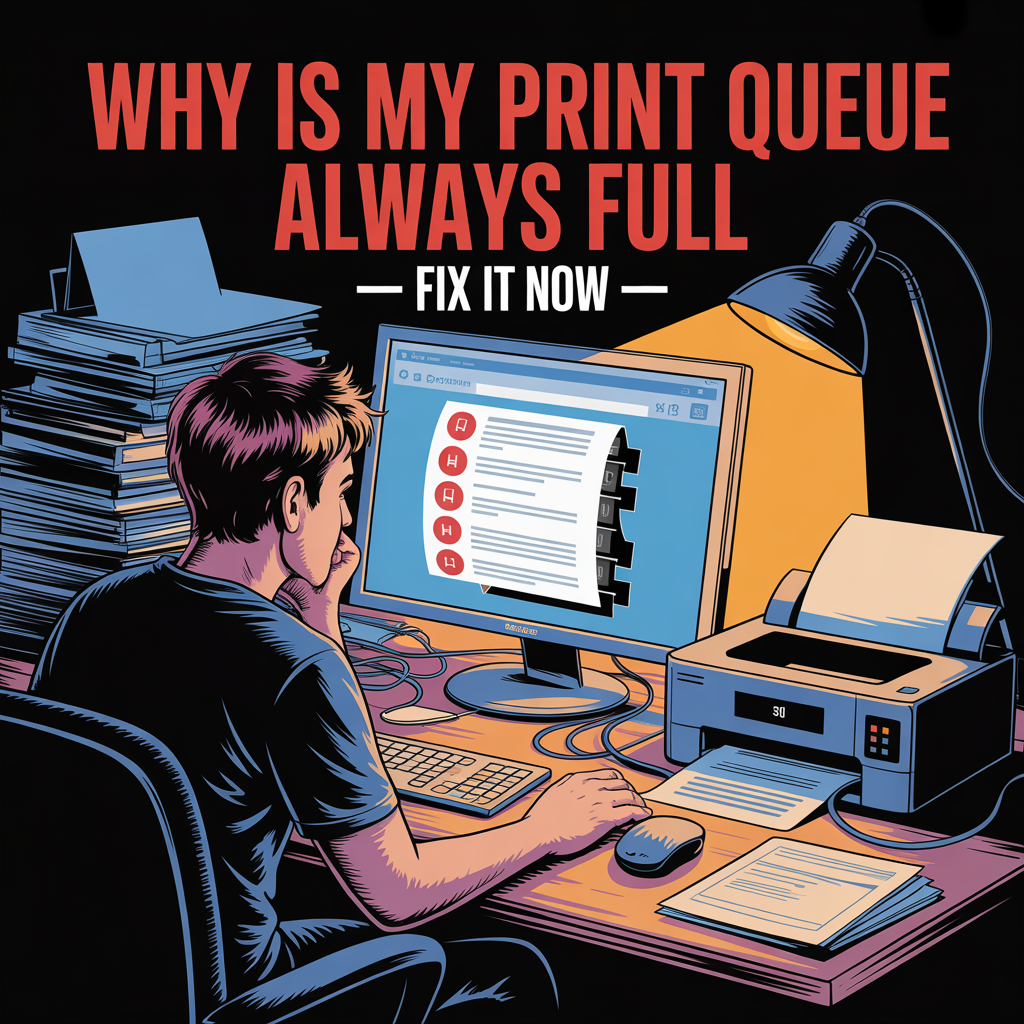
Why Is My Print Queue Always Full? Fix It Now
If you’ve ever sent a document to print only to find it stuck behind a mountain of pending jobs, you’re not alone. A constantly full print queue is one of the most frustrating printer issues Windows 11 users face, and it can bring your productivity to a grinding halt. Whether you’re dealing with documents that won’t clear, jobs that endlessly say “printing,” or a queue that seems to have a mind of its own, understanding why this happens—and how to fix it—is essential for anyone who relies on printing for work or home use.
Understanding the Print Queue Problem
The print queue, also known as the print spooler queue, acts as a temporary holding area for documents waiting to be printed. Under normal circumstances, jobs enter the queue, process quickly, and disappear once printed. However, when something goes wrong, documents can pile up, creating a backlog that prevents new print jobs from processing.
According to printer support specialists, a full print queue typically indicates an underlying communication problem between your computer, the Windows print spooler service, and your printer hardware. “Most print queue issues stem from the spooler service encountering an error it can’t resolve automatically,” explains Marcus Rivera, IT support manager with 15 years of experience troubleshooting enterprise printing systems. “When one job fails, it often creates a domino effect that blocks everything behind it.”
The Root Causes Behind a Perpetually Full Queue
Several factors can contribute to a chronically full print queue. The most common culprit is a corrupted print job—a document that contains errors or formatting issues that prevent the spooler from processing it correctly. This single problematic file can act like a cork in a bottle, blocking all subsequent jobs from printing.
Driver conflicts represent another significant cause. When printer drivers become outdated, incompatible with Windows 11, or corrupted through system updates, they can cause the spooler to malfunction. The print queue fills up because the driver can’t properly translate your print commands into instructions the printer understands.
Network connectivity issues also play a major role, especially with wireless or network printers. If your printer intermittently loses connection, the spooler continues queuing jobs even though it can’t communicate with the device. By the time you notice, dozens of documents may be waiting.
“Many users don’t realize that large, complex documents—particularly those with high-resolution images or unusual fonts—can overwhelm the spooler’s capacity,” notes Jennifer Chen, a certified printer technician. “The spooler has memory limitations, and when that’s exceeded, everything grinds to a halt.”
Hardware problems on the printer itself, such as paper jams, low memory, or processing errors, can also cause the queue to back up. If the printer can’t complete a job, it may not send the proper signal back to Windows, leaving jobs stranded in the queue.
Immediate Solutions to Clear Your Print Queue
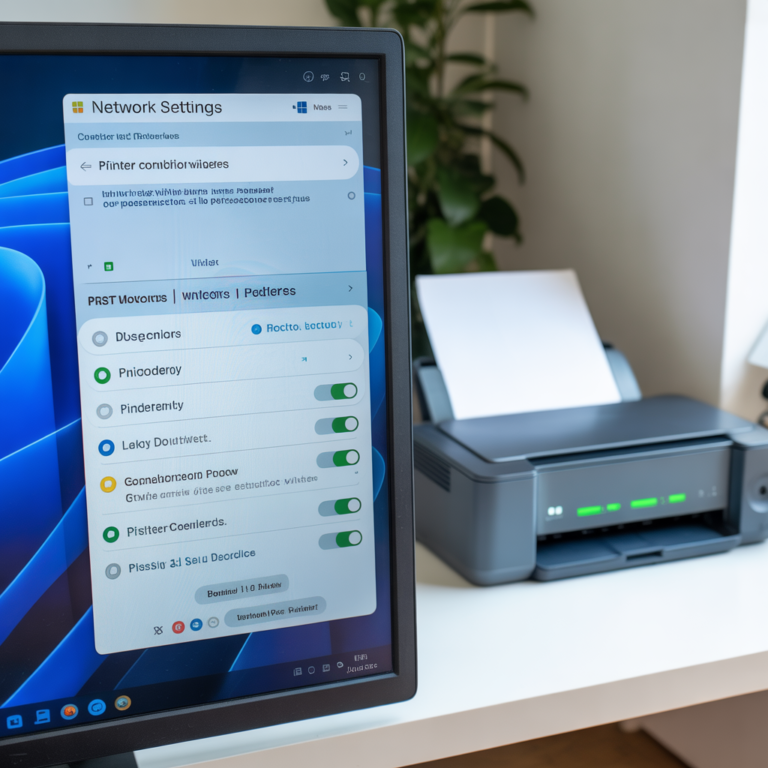
When faced with a full print queue, your first step should be clearing all pending jobs. Open Settings, navigate to Bluetooth & devices, then Printers & scanners. Select your printer and click “Open print queue.” From here, click “Printer” in the menu bar and select “Cancel All Documents.” If jobs won’t clear through this method, you’ll need to restart the print spooler service.
To restart the spooler, press Windows + R, type “services.msc,” and press Enter. Scroll down to “Print Spooler,” right-click it, and select “Stop.” Wait a few seconds, then right-click again and choose “Start.” This forces Windows to reset the spooling system and often clears stubborn jobs immediately.
For particularly resistant queue problems, you may need to manually delete spooler files. Stop the print spooler service as described above, then open File Explorer and navigate to C:\Windows\System32\spool\PRINTERS. Delete all files in this folder—these are the temporary files representing queued print jobs. Restart the spooler service, and your queue should be empty.
Long-Term Fixes to Prevent Queue Problems
Clearing the queue addresses the symptom, but preventing future issues requires tackling the underlying causes. Start by ensuring your printer drivers are current. Visit your printer manufacturer’s website and download the latest Windows 11-compatible drivers. Many users still have Windows 10 drivers that create compatibility issues.
If you’re dealing with a network printer, verify your connection stability. For wireless printers, consider assigning a static IP address instead of relying on DHCP, which can cause the printer’s network address to change unexpectedly. This simple step can eliminate many communication-related queue problems.
Adjusting spooler settings can also help. In the printer properties, under the Advanced tab, try changing from “Start printing after last page is spooled” to “Start printing immediately.” This reduces the memory burden on the spooler, though it may increase the time before printing begins.
“Regular spooler maintenance prevents most queue issues,” advises David Thompson, a network administrator who manages printing infrastructure for a 500-person organization. “I recommend users restart their print spooler service weekly, even if they’re not experiencing problems. It’s like clearing your cache—preventive maintenance that takes seconds but saves hours of frustration.”
For users who frequently print large or complex documents, consider increasing the spooler’s allocated memory. This requires editing the Windows Registry, so proceed carefully. Navigate to HKEY_LOCAL_MACHINE\SYSTEM\CurrentControlSet\Control\Print and modify the “SpoolerMemory” value to allocate more resources.
Addressing Specific Printer Types and Scenarios
Network printers present unique challenges. If multiple users share a printer and the queue frequently fills, the issue may be insufficient printer memory or processing power rather than a Windows problem. In these cases, upgrading printer hardware or implementing a print server to manage job distribution may be necessary.
USB-connected printers sometimes experience queue issues due to power management settings. Windows 11 may put USB ports to sleep to conserve energy, disrupting printer communication. Disable USB selective suspend in your power plan settings to maintain consistent connectivity.
For those experiencing queue problems specifically after Windows updates, the issue often involves driver compatibility. Microsoft’s generic print drivers may replace manufacturer-specific drivers during updates, causing functionality problems. After major Windows updates, always verify your printer driver is still the correct version from the manufacturer.
It’s worth noting that some queue issues connect to broader system problems. If you’re experiencing slow printing in Windows 11 alongside queue backups, the root cause may be system-wide rather than queue-specific. Addressing performance issues comprehensively often resolves multiple printing problems simultaneously.
When to Seek Professional Help
While most print queue issues can be resolved through the methods described here, certain situations warrant professional assistance. If you’ve tried all troubleshooting steps and the queue continues filling, you may have corrupted system files requiring advanced repair. Running the System File Checker (sfc /scannow in Command Prompt) can identify and fix these problems, but persistent issues may need IT support.
Businesses dealing with network printing infrastructure should consider consulting with printing specialists if queue problems affect multiple users or printers. Enterprise environments often have complex printer policies and authentication requirements that can create queue issues beyond typical user-level troubleshooting.
Taking Control of Your Print Queue
A constantly full print queue doesn’t have to be a permanent frustration. By understanding the underlying causes—corrupted jobs, driver issues, connectivity problems, or hardware limitations—you can implement targeted solutions that address your specific situation. Regular maintenance, including periodic spooler restarts and driver updates, prevents most queue problems before they start.
Remember that printing issues often have multiple contributing factors. If one solution doesn’t completely resolve your problem, try combining approaches. Update your drivers while also improving your network connection stability. Clear the queue while also increasing spooler memory allocation.
The key is methodical troubleshooting and patience. Most print queue problems have straightforward solutions once you identify the root cause. With the strategies outlined here, you can transform your printing experience from a source of frustration to a reliable, efficient process that supports your productivity rather than hindering it.
FAQs
Why does my print queue keep getting stuck on one document? A stuck document in the queue typically indicates a corrupted print job or incompatible file format. The spooler can’t process the file, so it blocks all subsequent jobs. Restart the print spooler service and manually delete files from the PRINTERS folder to clear it.
How do I permanently fix a print queue that won’t clear? Stop the print spooler service via services.msc, delete all files from C:\Windows\System32\spool\PRINTERS, then restart the spooler. For permanent fixes, update printer drivers and ensure stable printer connectivity to prevent future occurrences.
Can too many print jobs cause the queue to crash? Yes, the print spooler has memory limitations. Sending numerous large documents simultaneously can overwhelm the spooler, causing it to crash and leave the queue full. Increase spooler memory allocation through Registry settings or print smaller batches.
Why does my network printer queue fill up faster than a USB printer? Network printers depend on consistent WiFi or Ethernet connectivity. Any connection interruption causes jobs to queue without processing. USB connections are more stable, making them less prone to queue backup issues.
Does restarting my computer clear the print queue? Yes, restarting automatically stops and restarts the print spooler service, clearing all queued jobs. However, this doesn’t fix underlying causes, so queue problems may return unless you address driver, connectivity, or hardware issues.
How often should I clear my print queue for maintenance? If you print regularly, manually clearing the queue isn’t necessary for maintenance. Instead, restart the print spooler service weekly to prevent potential issues. Only clear the queue when experiencing actual problems with stuck jobs.
Can outdated printer drivers cause constant queue problems? Absolutely. Outdated or Windows 10 drivers running on Windows 11 often create communication errors between your computer and printer, causing jobs to pile up without processing correctly. Always use manufacturer-provided Windows 11 drivers.
Why do print jobs show as “printing” but never actually print? This indicates the spooler sent the job to the printer, but the printer isn’t responding. Check printer connectivity, ensure it’s powered on and online, verify there are no hardware errors, and confirm the correct printer is set as default.
What’s the difference between canceling documents and restarting the spooler? Canceling documents removes visible jobs from the queue through Windows interface. Restarting the spooler completely resets the printing service and clears all temporary files, including hidden or corrupted jobs that won’t cancel normally.
Can antivirus software interfere with the print queue? Yes, some security software monitors the spooler folder and can interfere with print job processing. If you suspect this, temporarily disable your antivirus and test printing. If the queue clears normally, add the spooler folder to your antivirus exclusions list.