How to Restart Print Spooler Service in Windows 11 Fast
How to restart Print Spooler service in Windows 11 is one of the most searched troubleshooting queries among Windows users experiencing printing difficulties. The Print Spooler is a critical background service that manages all print jobs sent to your printer, and when it malfunctions, your entire printing workflow comes to a halt. Whether you’re dealing with documents stuck in the print queue, printers that won’t respond, or mysterious error messages, restarting this service often provides immediate relief.
Understanding when and how to properly restart the Print Spooler service can save you hours of frustration and prevent unnecessary calls to IT support. This comprehensive guide walks you through multiple methods to restart this essential service, explains why it matters, and provides expert insights on maintaining optimal printer performance in Windows 11.
Quick Navigations
- 1 Understanding the Print Spooler Service and Its Importance
- 2 Method 1: Restarting Print Spooler Through Services Manager
- 3 Method 2: Using Command Prompt for Quick Service Restart
- 4 Method 3: PowerShell Commands for Advanced Control
- 5 Method 4: Creating a Desktop Shortcut for One-Click Restart
- 6 Method 5: Using Task Scheduler for Automatic Restarts
- 7 Clearing the Print Spooler Folder for Complete Reset
- 8 Troubleshooting When Print Spooler Won’t Restart
- 9 Best Practices for Preventing Print Spooler Issues
- 10 Understanding Error Messages and Log Files
- 11 When to Seek Professional Help
- 12 Conclusion
- 13 FAQs
Understanding the Print Spooler Service and Its Importance
The Print Spooler service acts as an intermediary between your applications and your printer hardware. When you click “print” on any document, the service temporarily stores (or “spools”) the print job in a queue, converts it into a format your printer understands, and then sends it to the printer at the appropriate time. This process happens seamlessly in the background, allowing you to continue working while documents print.
According to Michael Torres, a certified Windows systems administrator with over 15 years of experience, “The Print Spooler is often overlooked until it fails, but it’s one of the most frequently accessed services in any Windows environment. In corporate settings, we see Print Spooler issues account for nearly 30% of all printing-related help desk tickets.”
When the Print Spooler encounters errors—whether from corrupted print jobs, driver conflicts, or system resource limitations—it can crash, freeze, or simply stop processing new jobs. These issues manifest in several ways: print jobs that appear stuck, printers showing offline status, or error messages stating the service isn’t running. Restarting the service clears temporary data, resets connections, and often resolves these problems instantly.
The service runs continuously by default, but various factors can cause it to malfunction. Memory leaks in printer drivers, incompatible software updates, corrupted temporary files in the spooler folder, and even malware can all compromise Print Spooler functionality. Many of these issues relate to the 5 common causes of slow printing in Windows 11 that affect overall printer performance.
Method 1: Restarting Print Spooler Through Services Manager
The Services Manager provides the most straightforward approach for restarting the Print Spooler service. This graphical interface gives you complete control over Windows services with just a few clicks.
Step-by-step process:
Press Windows Key + R to open the Run dialog box. Type “services.msc” into the field and press Enter. This command launches the Services management console, which displays all Windows services in alphabetical order.
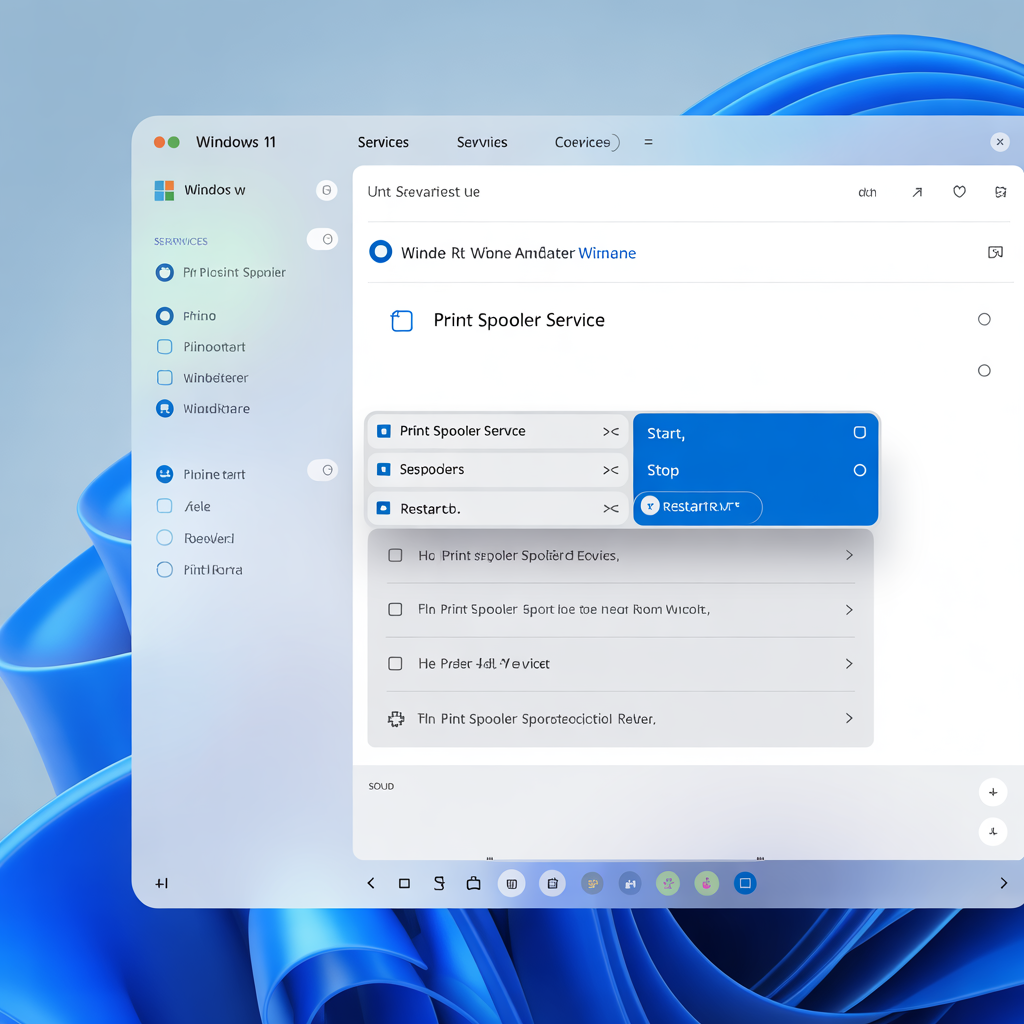
In the Services window, scroll down until you locate “Print Spooler” in the list. The Status column should normally show “Running” for this service. Right-click on Print Spooler and select “Restart” from the context menu. If the service isn’t currently running, you’ll see “Start” instead—click that option to launch it.
The system will briefly stop and then restart the service. You’ll see the status temporarily change to blank before returning to “Running.” This process typically takes just a few seconds. Once complete, check your printer to see if it’s now responding to print commands.
This method works reliably for most common Print Spooler issues. Sarah Chen, a technical support specialist at a Fortune 500 company, notes, “We train our first-level support staff to use the Services Manager as their first troubleshooting step. It resolves about 60% of print-related tickets without requiring escalation.”
If you need to restart the Print Spooler frequently, you can also modify its startup type. Right-click the service, select Properties, and you’ll find options for Automatic, Automatic (Delayed Start), Manual, or Disabled startup types. Most users should keep it set to Automatic to ensure the service starts when Windows boots.
Method 2: Using Command Prompt for Quick Service Restart
For users comfortable with command-line interfaces, the Command Prompt offers a faster way to restart the Print Spooler service. This method is particularly useful for IT professionals managing multiple machines or users who want to create restart shortcuts.
Command-line approach:
Right-click the Start button and select “Windows Terminal (Admin)” or “Command Prompt (Admin)” to open an elevated command prompt with administrator privileges. Windows will ask for permission to make changes—click Yes to proceed.
In the command window, type the following command and press Enter:
net stop spoolerThis command stops the Print Spooler service immediately. You’ll see a message confirming the service has stopped. Next, type this command and press Enter:
net start spoolerThe Print Spooler will restart, and you’ll receive confirmation that the service started successfully. These two simple commands accomplish the same result as using the Services Manager but with fewer clicks and faster execution.
David Kumar, a network administrator who manages over 500 workstations, explains his preference for the command-line method: “When I’m troubleshooting remotely or need to restart the spooler on multiple computers, using commands is significantly faster than navigating through the GUI on each machine. I can even script this process for our most problematic printers.”
You can also combine these commands into a single line with an ampersand separator:
net stop spooler && net start spoolerThis combined command stops and immediately restarts the service in one execution. The “&&” operator ensures the second command only runs if the first succeeds, preventing errors.
Method 3: PowerShell Commands for Advanced Control
PowerShell provides even more powerful options for managing the Print Spooler service, offering greater flexibility and scripting capabilities than traditional Command Prompt commands.
PowerShell procedure:
Open Windows Terminal or PowerShell as administrator by right-clicking the Start button and selecting the appropriate option. PowerShell offers cmdlets (specialized commands) specifically designed for service management.
To restart the Print Spooler using PowerShell, enter this command:
Restart-Service -Name SpoolerThis single command stops and restarts the service in one action. PowerShell’s Restart-Service cmdlet is more elegant than using separate stop and start commands, and it includes built-in error handling.
For additional control, you can use the -Force parameter to ensure the service restarts even if dependent services are running:
Restart-Service -Name Spooler -ForcePowerShell also allows you to check the service status before and after restarting. Use this command to view current status:
Get-Service -Name SpoolerYou can even create more sophisticated scripts that automatically restart the Print Spooler when specific conditions are met. For example, a script could monitor the service and restart it if it stops unexpectedly, providing automatic recovery for problematic systems.
Jennifer Walsh, a systems engineer specializing in Windows automation, advocates for PowerShell: “Once you understand basic PowerShell syntax, you can create incredibly useful automation scripts. I’ve built scripts that not only restart the Print Spooler but also clear the spooler folder, check for problematic drivers, and generate logs—all with a single command.”
Method 4: Creating a Desktop Shortcut for One-Click Restart
If you frequently need to restart the Print Spooler service, creating a desktop shortcut can save considerable time and eliminate the need to remember commands or navigate through system menus.
Creating your shortcut:
Right-click on an empty area of your desktop and select New > Shortcut. Windows will open the Create Shortcut wizard, asking for the item’s location.
In the location field, enter this command:
cmd.exe /c net stop spooler & net start spoolerClick Next, then give your shortcut a descriptive name like “Restart Print Spooler” or “Fix Printer.” Click Finish to create the shortcut. You’ll now see a new icon on your desktop.
However, this shortcut won’t work unless it runs with administrator privileges. Right-click the newly created shortcut and select Properties. Click the Advanced button and check the box labeled “Run as administrator.” Click OK twice to save these changes.
Now you can double-click this shortcut whenever you need to restart the Print Spooler. Windows will prompt you for administrator permission, then execute the restart automatically. This one-click solution is particularly valuable in office environments where non-technical users need a simple way to resolve common printing problems.
You can customize the shortcut further by changing its icon. In the Properties window, click Change Icon and select something easily recognizable, such as a printer icon or a tool icon. This visual distinction helps users quickly locate the shortcut when needed.
Method 5: Using Task Scheduler for Automatic Restarts
For systems experiencing chronic Print Spooler problems, setting up automatic restarts through Task Scheduler can maintain printer functionality without manual intervention. This approach is particularly useful for print servers or workstations with problematic printer drivers that cause regular service crashes.
Setting up automated restarts:
Press Windows Key + R, type “taskschd.msc” and press Enter to open Task Scheduler. In the Task Scheduler window, click “Create Basic Task” in the Actions panel on the right side.
Give your task a meaningful name like “Auto-Restart Print Spooler” and an optional description explaining its purpose. Click Next. Select your trigger—when you want this task to run. You might choose “Daily” if you want preventive restarts each night, or you can set up more complex triggers based on specific events or conditions.
Configure the schedule details (time, frequency, etc.) and click Next. Select “Start a program” as the action and click Next. In the Program/script field, enter:
netIn the “Add arguments” field, enter:
stop spooler && net start spoolerClick Next, review your settings, and click Finish. The task is now created but needs one final modification. Find your new task in the Task Scheduler Library, right-click it, and select Properties. Check the box that says “Run with highest privileges” to ensure the task has administrator rights.
Marcus Thompson, an IT manager for a printing company with 50+ printers, shares his experience: “We had one particularly problematic printer server that would hang every few days. Instead of waiting for complaints, we implemented a scheduled restart at 2 AM daily. Print reliability increased dramatically, and support tickets dropped by 40%. Sometimes preventive measures are more effective than reactive troubleshooting.”
You can also configure Task Scheduler to restart the service based on specific events, such as whenever Event ID 7031 appears in the System log (which indicates an unexpected service termination). This event-driven approach provides automatic recovery without unnecessary restarts.
Clearing the Print Spooler Folder for Complete Reset
Sometimes restarting the service alone doesn’t resolve issues because corrupted files remain in the spooler folder. These temporary files can cause the service to malfunction immediately after restarting. Clearing this folder manually ensures a clean slate.
Complete clearing procedure:
First, stop the Print Spooler service using any of the methods described above. This step is essential because Windows locks these files while the service is running, preventing deletion.
Open File Explorer and navigate to this location:
C:\Windows\System32\spool\PRINTERSThis folder contains all temporary print job files. Select all files in this folder (Ctrl + A) and delete them. If prompted that you need administrator permission, confirm the deletion. Empty the Recycle Bin to permanently remove these files.
Now restart the Print Spooler service. The service will recreate this folder structure automatically, but without any corrupted files that were causing problems. This complete reset often resolves issues that simple service restarts cannot fix.
For severe issues, you might also want to clear the drivers folder located at:
C:\Windows\System32\spool\driversHowever, exercise caution here, as this folder contains printer driver files. Deleting these requires reinstalling your printer drivers afterward.
Lisa Rodriguez, a print solutions consultant, emphasizes the importance of this step: “About 20% of Print Spooler issues stem from corrupted files in the spooler folder. Many technicians forget this step and wonder why problems recur. A complete clean-out followed by a service restart provides much better long-term results.”
Troubleshooting When Print Spooler Won’t Restart
Occasionally, the Print Spooler service refuses to restart or immediately crashes after starting. These persistent issues require additional troubleshooting steps beyond simple service restarts.
Common obstacles and solutions:
If you receive an “Access Denied” error when trying to restart the service, you’re not running your commands or applications with administrator privileges. Always use “Run as administrator” options when executing any of these methods.
When the service starts but immediately stops again, this typically indicates a deeper problem—usually a corrupted printer driver or a damaged system file. Check the Event Viewer for specific error messages. Press Windows Key + X and select Event Viewer, then navigate to Windows Logs > System. Look for errors related to the Print Spooler service around the time you attempted to restart it.
Driver conflicts are among the most common causes of persistent Print Spooler failures. Try disconnecting all printers and restarting the service. If it stays running without printers connected, you’ve confirmed a driver issue. Reconnect printers one at a time to identify the problematic device, then update or reinstall its driver.
Some third-party applications interfere with Print Spooler operation. Certain PDF creators, fax software, and document management systems install virtual printers that can conflict with the spooler. Temporarily disable these applications to see if the service stabilizes.
If corrupted system files are preventing proper operation, run the System File Checker utility. Open Command Prompt as administrator and type:
sfc /scannowThis command scans all protected system files and repairs corrupted versions. The process takes 15-30 minutes and requires a system restart.
In rare cases, you might need to reset the Print Spooler dependencies. The service relies on other Windows services like Remote Procedure Call (RPC) and HTTP. If these dependencies aren’t running properly, the Print Spooler cannot function. Check these dependencies in the Services Manager by viewing the Print Spooler Properties > Dependencies tab.
Best Practices for Preventing Print Spooler Issues
While knowing how to restart the Print Spooler is valuable, preventing problems in the first place is even better. Implementing these best practices can significantly reduce the frequency of Print Spooler failures.
Preventive maintenance strategies:
Keep your printer drivers updated. Manufacturers regularly release driver updates that fix bugs, improve compatibility, and enhance stability. Visit your printer manufacturer’s website monthly to check for updates, or enable automatic driver updates through Windows Update.
Limit the number of print jobs sent simultaneously. When users send dozens of large documents to print at once, they can overwhelm the Print Spooler, especially on systems with limited memory. For bulk printing jobs, consider breaking them into smaller batches.
Regular system maintenance prevents many Print Spooler issues. Run Disk Cleanup monthly to remove temporary files, including old print job data. Keep at least 10-15% of your system drive free, as full hard drives cause numerous Windows services to malfunction.
Monitor your system’s memory usage. The Print Spooler service consumes more RAM when handling large or complex print jobs. Systems with 4GB of RAM or less may struggle with heavy printing workloads. Consider upgrading memory if you regularly experience Print Spooler crashes during large print jobs.
Use manufacturer-recommended drivers rather than Windows generic drivers. While generic drivers provide basic functionality, they often lack optimization and can cause stability issues. Manufacturer-specific drivers are engineered specifically for your printer model and typically offer better reliability.
Robert Anderson, a managed services provider who supports hundreds of businesses, offers this advice: “The clients who experience the fewest printing problems are those who treat printer maintenance as seriously as they treat computer maintenance. Regular driver updates, system cleanups, and proactive monitoring prevent 70-80% of the issues we used to see regularly.”
Configure appropriate Print Spooler settings in Group Policy for enterprise environments. You can set limits on spooler file sizes, enable logging for troubleshooting, and even configure automatic service recovery options that restart the service when it fails.
Understanding Error Messages and Log Files
When Print Spooler problems occur, Windows generates error messages and log entries that can help identify root causes. Learning to interpret these messages enables more effective troubleshooting.
Common error codes:
Error 1068 indicates that the Print Spooler’s dependencies aren’t running. Check that the Remote Procedure Call (RPC) service is active, as the Print Spooler requires it to function.
Error 1053 means the service didn’t respond to start requests in a timely manner. This usually indicates a severe problem with corrupted files or driver conflicts. Try clearing the spooler folder as described earlier.
Error 1067 suggests the process terminated unexpectedly, often due to corrupted drivers or system files. Run the System File Checker and consider reinstalling problematic printer drivers.
The Event Viewer provides detailed information about Print Spooler activities and failures. Regular monitoring can reveal patterns that help predict and prevent problems. Navigate to Event Viewer > Windows Logs > System and filter by Event Source “Print” to see only print-related events.
Event ID 7031 indicates an unexpected service termination and often precedes Print Spooler crashes. If you see this event repeatedly, investigate recent driver installations or system changes that might be causing instability.
Event ID 372 relates to printer driver issues and appears when drivers crash or fail to load properly. These events specifically identify which printer driver caused the problem, making troubleshooting more targeted.
Windows also maintains a separate printer event log at Event Viewer > Applications and Services Logs > Microsoft > Windows > PrintService. This specialized log provides even more detailed information about print job processing, driver loading, and service operations.
When to Seek Professional Help
While restarting the Print Spooler service resolves most common printing issues, certain situations warrant professional IT assistance or more advanced troubleshooting.
Escalation indicators:
If you must restart the Print Spooler multiple times daily, something more serious is wrong. Chronic instability suggests driver conflicts, hardware problems, or even malware infections that require professional diagnosis.
When the service fails to start despite trying all the methods outlined above, you may be dealing with corrupted Windows components that require specialized repair tools or even Windows reinstallation.
Network printing environments with print servers require more sophisticated troubleshooting when Print Spooler issues occur. Multiple users experiencing simultaneous problems might indicate server-side issues that individual workstation troubleshooting cannot resolve.
Security concerns should also prompt professional consultation. The Print Spooler service has been targeted by several high-profile security vulnerabilities in recent years, including the PrintNightmare exploit. If you suspect security-related Print Spooler problems, immediately contact IT security professionals.
For business-critical printing environments, establishing a relationship with a managed print services provider can be invaluable. These specialists understand the complexities of enterprise printing infrastructure and can often remotely diagnose and resolve issues that would puzzle general IT staff.
Elena Vasquez, a cybersecurity consultant, warns: “We’ve seen attackers exploit Print Spooler vulnerabilities to gain system access. If your Print Spooler behaves strangely—starting and stopping randomly, consuming excessive resources, or generating unusual error messages—treat it as a potential security incident until proven otherwise.”
Conclusion
Knowing how to restart Print Spooler service in Windows 11 is an essential skill for any Windows user who regularly prints documents. Whether you prefer the graphical simplicity of the Services Manager, the efficiency of command-line methods, or the automation capabilities of Task Scheduler and PowerShell scripts, you now have multiple approaches to quickly resolve common printing problems.
The Print Spooler service forms the backbone of Windows printing functionality, and maintaining its health directly impacts productivity. By understanding not just how to restart the service but also why it fails and how to prevent issues, you can minimize printing disruptions and maintain smooth operations.
Remember that while restarting the Print Spooler fixes many immediate problems, recurring issues signal deeper problems that require more comprehensive solutions. Regular system maintenance, driver updates, and proactive monitoring will serve you better than reactive troubleshooting alone.
For comprehensive information about improving overall print performance and resolving related issues, review our detailed guide on 5 common causes of slow printing in Windows 11 and fixes, which addresses the broader context of Windows 11 printing problems.
With these tools and knowledge at your disposal, you’re well-equipped to handle Print Spooler service issues quickly and effectively, keeping your printing workflow running smoothly regardless of what challenges arise.
FAQs
What does the Print Spooler service do in Windows 11?
The Print Spooler service manages all printing operations on your Windows 11 computer. It receives print jobs from applications, stores them temporarily in a queue, converts them to a format your printer understands, and then sends them to the printer. It works in the background to allow you to continue using your computer while documents print, handling multiple print jobs from different applications simultaneously.
Why does my Print Spooler service keep stopping automatically?
Print Spooler service stops automatically due to corrupted printer drivers, damaged files in the spooler folder, insufficient system memory, malware infections, or conflicts with third-party software. Driver corruption is the most common cause, especially after Windows updates that may introduce incompatibilities with existing printer drivers. Running too many large print jobs simultaneously can also exhaust system resources and cause the service to crash.
How do I know if my Print Spooler is running or stopped?
You can check Print Spooler status by opening the Services Manager (press Windows Key + R, type “services.msc” and press Enter). Scroll to “Print Spooler” in the list—the Status column will show “Running” if active or blank if stopped. Alternatively, open Command Prompt and type “sc query spooler” to see the current service state. Your printer appearing offline or print jobs stuck in the queue also indicate a stopped Print Spooler.
Can I disable Print Spooler service permanently if I don’t print?
Yes, if you never print documents, you can safely disable the Print Spooler service to free up system resources. Open Services Manager, right-click Print Spooler, select Properties, change Startup Type to “Disabled,” and click Apply. However, this prevents all printing functionality, including printing to PDF or virtual printers. Many applications expect the service to be available, so disabling it may cause error messages even if you don’t physically print.
What is the Print Spooler folder location in Windows 11?
The Print Spooler folder is located at C:\Windows\System32\spool\PRINTERS. This directory stores temporary files for all print jobs currently in the queue. When print jobs get stuck or corrupted, manually deleting files from this folder (after stopping the Print Spooler service) often resolves issues. The parent “spool” folder at C:\Windows\System32\spool also contains subfolders for printer drivers and other printing-related data.
How often should I restart the Print Spooler service?
In a healthy system, you should rarely need to restart the Print Spooler service. If your system is functioning normally with updated drivers and no conflicts, the service should run continuously without intervention. Needing to restart it more than once or twice per month suggests underlying issues with printer drivers, system resources, or software conflicts that should be addressed rather than compensated for with regular restarts.
Will restarting Print Spooler delete my print queue?
Yes, restarting the Print Spooler service clears all pending print jobs from the queue. Any documents waiting to print will be removed and must be sent again after the service restarts. If you have important documents in the queue, note which files they are before restarting the service so you can easily reprint them. This queue clearing is actually beneficial when dealing with stuck or corrupted print jobs that are causing problems.
Can Print Spooler issues cause security vulnerabilities?
Yes, the Print Spooler service has been affected by several serious security vulnerabilities, most notably the “PrintNightmare” vulnerability discovered in 2021. These flaws allowed attackers to execute code with system-level privileges through manipulated printer drivers. Microsoft has released patches addressing these issues, but keeping Windows fully updated is essential. If your organization doesn’t require printing functionality, some security experts recommend disabling the service entirely on servers.
What’s the difference between restarting Print Spooler through Services vs Command Prompt?
Both methods accomplish the same result—stopping and restarting the Print Spooler service—but they differ in execution speed and use cases. The Services Manager provides a visual interface ideal for occasional troubleshooting and viewing service properties. Command Prompt and PowerShell methods execute faster and are preferable for IT professionals managing multiple computers, creating automated scripts, or working remotely. The underlying service restart operation is identical regardless of method used.
How do I fix Error 1068 when starting Print Spooler?
Error 1068 means the Print Spooler cannot start because one or more of its dependent services isn’t running. The Print Spooler depends on the Remote Procedure Call (RPC) service. To fix this, open Services Manager, locate “Remote Procedure Call (RPC),” and ensure it’s running with Startup Type set to Automatic. If RPC is stopped, start it first, then attempt to start the Print Spooler again. If RPC won’t start, you may have serious Windows system corruption requiring repair.