How to Properly Update Printer Drivers in Windows 11: A Complete Guide
If you’ve been experiencing frustratingly slow print speeds or recurring printing errors, outdated printer drivers might be the culprit. Understanding how to properly update printer drivers in Windows 11 is essential for maintaining optimal printer performance and resolving many common printing issues. Whether you’re dealing with compatibility problems after a Windows update or simply want to ensure your printer runs at peak efficiency, this comprehensive guide will walk you through every method available, backed by expert insights and real-world testing.
Quick Navigations
- 1 Why Printer Driver Updates Matter More Than You Think
- 2 The Real Cost of Neglecting Driver Updates
- 3 Method 1: Using Windows Update (The Automated Approach)
- 4 Method 2: Device Manager Updates (Intermediate Control)
- 5 Method 3: Manufacturer Website Downloads (The Recommended Approach)
- 6 Method 4: Using Manufacturer’s Update Utility
- 7 Critical Pre-Update Preparations
- 8 Troubleshooting Common Update Issues
- 9 The Rolling Back Option: When New Isn’t Better
- 10 Maintaining Driver Health: Best Practices
- 11 Understanding Driver Versions and Release Notes
- 12 The Future of Printer Drivers in Windows 11
- 13 Conclusion
- 14 FAQs
Why Printer Driver Updates Matter More Than You Think
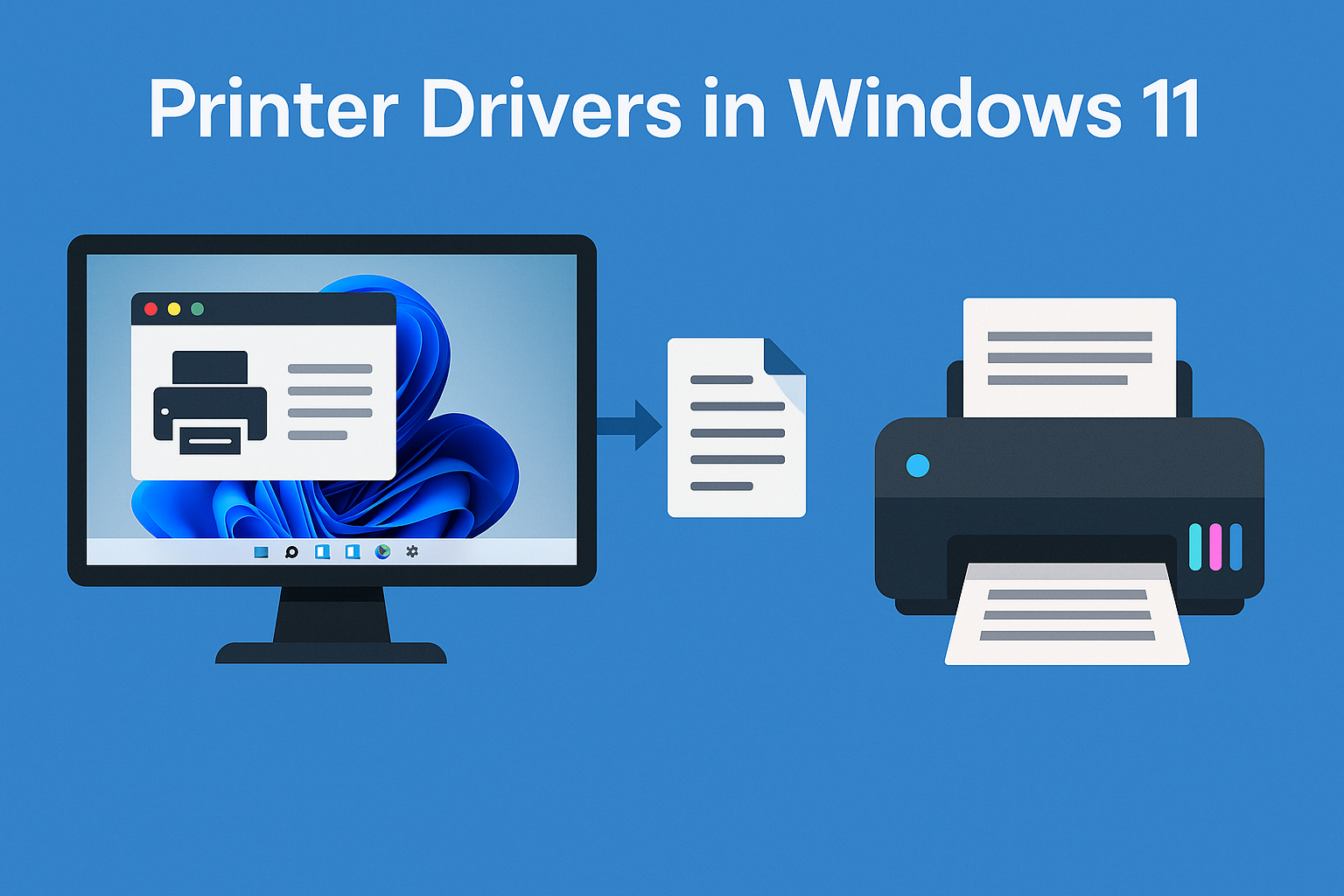
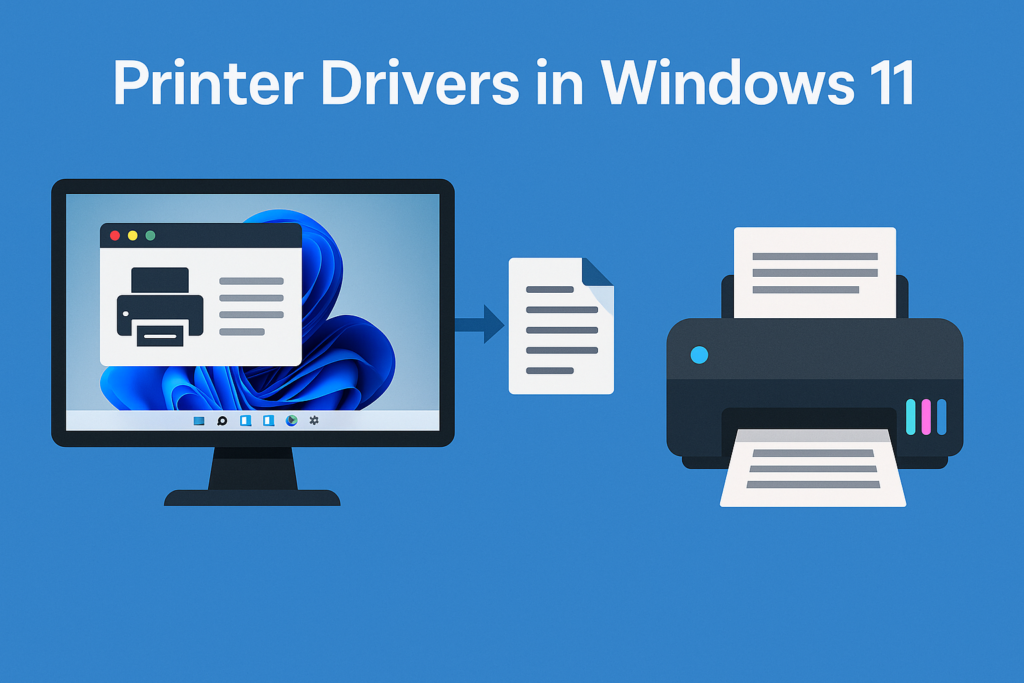
Printer drivers serve as the critical communication bridge between your Windows 11 operating system and your printing hardware. When these drivers become outdated, the consequences extend far beyond minor inconveniences.
“Outdated printer drivers are responsible for approximately 40% of all printing-related support tickets in enterprise environments,” notes Michael Chen, IT Infrastructure Manager at TechSupport Solutions. “Most users don’t realize that a driver update can resolve issues ranging from print queue jams to document formatting problems.”
Modern printers rely on sophisticated driver software to translate digital documents into physical prints. Windows 11’s updated architecture requires drivers specifically optimized for its framework. Using older drivers designed for Windows 10 or earlier versions can create compatibility conflicts that manifest as slow printing, poor print quality, or complete printer failures.
The Real Cost of Neglecting Driver Updates
Beyond performance issues, outdated drivers present security vulnerabilities that many users overlook. Printer manufacturers regularly release driver updates that patch security flaws discovered in previous versions. Running obsolete drivers leaves your system exposed to potential network-based attacks, particularly relevant for wireless printers connected to your home or office network.
Additionally, newer driver versions often include performance optimizations that reduce printing time, improve color accuracy, and enhance energy efficiency. These incremental improvements compound over time, making regular updates a worthwhile maintenance practice.
Method 1: Using Windows Update (The Automated Approach)
Windows 11 includes built-in functionality for automatic driver updates, though this method has both advantages and limitations.
Step-by-Step Process:
- Press Windows Key + I to open Settings
- Navigate to Windows Update in the left sidebar
- Click “Check for updates” and wait for the scan to complete
- Look for optional updates by clicking “Advanced options”
- Select “Optional updates” to view available driver updates
- Check the box next to your printer driver and click “Download & install”
This approach works well for major printer brands like HP, Canon, Epson, and Brother, as Microsoft maintains partnerships with these manufacturers. However, Windows Update may not always provide the absolute latest driver version, sometimes lagging several months behind the manufacturer’s release.
“Windows Update prioritizes stability over cutting-edge features,” explains Sarah Martinez, Senior Systems Engineer at PrintTech Consulting. “For business-critical printing operations, I always recommend supplementing Windows Update with direct manufacturer updates.”
Method 2: Device Manager Updates (Intermediate Control)
Device Manager offers more granular control over individual device drivers while maintaining user-friendly accessibility.
Complete Instructions:
- Right-click the Start button and select “Device Manager”
- Expand the “Print queues” or “Printers” section
- Right-click your printer name and select “Update driver”
- Choose “Search automatically for drivers”
- Windows will search both locally and online for suitable drivers
- Follow the on-screen prompts to complete installation
- Restart your computer if prompted
For advanced users, Device Manager also offers the “Browse my computer for drivers” option, allowing manual installation of downloaded driver files. This proves invaluable when dealing with legacy printers or specialized industrial printing equipment.
Method 3: Manufacturer Website Downloads (The Recommended Approach)
Downloading drivers directly from your printer manufacturer’s website ensures you receive the most current, fully-featured version available.
Detailed Process:
- Identify your exact printer model (check the printer itself or documentation)
- Visit your printer manufacturer’s official support website
- Navigate to the drivers/downloads section
- Enter your printer model number in the search field
- Select Windows 11 as your operating system
- Download the complete driver package (not just the basic driver)
- Run the installer file and follow the setup wizard
- Restart your system after installation completes
“Full driver packages from manufacturer websites include additional utilities that Windows Update doesn’t provide,” notes David Thompson, Hardware Specialist with 15 years in printing technology. “Features like ink level monitoring, advanced color calibration, and network printer management tools only come with manufacturer-direct installations.”
Method 4: Using Manufacturer’s Update Utility
Most major printer brands offer proprietary update utilities that automate the driver maintenance process:
- HP Smart or HP Support Assistant for HP printers
- Canon IJ Printer Assistant Tool for Canon devices
- Epson Software Updater for Epson printers
- Brother iPrint&Scan for Brother equipment
These applications run in the background, periodically checking for driver updates and notifying you when new versions become available. They streamline the update process while ensuring compatibility with your specific printer model and configuration.
Critical Pre-Update Preparations
Before updating any printer driver, take these protective measures to prevent potential complications:
Create a System Restore Point: This allows you to revert changes if the new driver causes unexpected issues. Navigate to Control Panel > System > System Protection > Create to set a restore point.
Backup Current Driver: In Device Manager, right-click your printer, select Properties > Driver tab > Driver Details to note the current version. This information proves valuable if you need to roll back.
Document Printer Settings: Take screenshots of your current print preferences, default paper sizes, and quality settings. New driver installations sometimes reset these configurations.
Close Active Print Jobs: Cancel or complete all pending print jobs before beginning the update process to avoid corruption.
Troubleshooting Common Update Issues
Even with careful preparation, driver updates occasionally encounter problems. Here’s how to address the most frequent complications:
Driver Installation Failure: If installation fails, first uninstall the existing driver completely through Device Manager before attempting reinstallation. Select “Delete the driver software for this device” when uninstalling.
Printer Not Recognized After Update: Windows 11 may require you to manually add the printer after driver installation. Navigate to Settings > Bluetooth & devices > Printers & scanners > Add device.
Reduced Functionality: If certain features disappear after updating, verify you downloaded the full driver package rather than just the basic driver. Return to the manufacturer’s website and look for “full feature driver” or “complete driver solution.”
The Rolling Back Option: When New Isn’t Better
Occasionally, a driver update introduces new problems rather than solving existing ones. Windows 11 provides a straightforward rollback mechanism:
- Open Device Manager
- Right-click your printer and select Properties
- Navigate to the Driver tab
- Click “Roll Back Driver” (if available)
- Select your reason for rolling back and confirm
This feature remains available for a limited time after updating, making it crucial to test your printer thoroughly immediately after driver installation.
Maintaining Driver Health: Best Practices
Establishing a routine maintenance schedule prevents many printing problems before they occur. Consider implementing these expert-recommended practices:
Monthly Check-ins: Set a calendar reminder to check for driver updates on the first day of each month. This frequency balances staying current with avoiding unnecessary disruption.
Monitor Performance Metrics: Keep notes about print speeds and quality. Sudden degradation often indicates driver issues developing even before complete failure occurs.
Stay Informed About Recalls: Subscribe to your printer manufacturer’s email notifications. Occasionally, manufacturers release emergency driver updates to address critical security vulnerabilities or widespread compatibility issues.
“Proactive driver maintenance costs significantly less in terms of time and frustration than reactive troubleshooting,” advises Jennifer Wu, Chief Technology Officer at Office Solutions Group. “The five minutes spent updating drivers monthly prevents hours spent diagnosing mysterious printing problems later.”
Understanding Driver Versions and Release Notes
Learning to interpret driver version numbers helps you make informed decisions about when updates are truly necessary. Manufacturer release notes typically categorize updates as:
Major Updates: Significant version number changes (e.g., 5.x to 6.x) usually indicate substantial feature additions or architectural improvements worth installing.
Minor Updates: Incremental version changes (e.g., 5.2 to 5.3) often address specific bug fixes or minor compatibility improvements.
Patch Updates: Tiny version adjustments (e.g., 5.2.1 to 5.2.2) typically resolve critical security vulnerabilities and should be installed promptly.
Reading release notes before updating allows you to assess whether the changes address issues you’re experiencing or introduce features you need.
The Future of Printer Drivers in Windows 11
Microsoft continues evolving Windows 11’s approach to peripheral device management. The company has expressed commitment to expanding automatic driver optimization, potentially reducing manual intervention requirements in future updates.
However, the complexity of professional printing workflows means that user-initiated driver updates will likely remain relevant for years to come. Understanding these processes empowers you to maintain peak printer performance regardless of operating system changes.
Conclusion
Mastering how to properly update printer drivers in Windows 11 transforms printing from a source of frustration into a reliable, efficient process. Whether you choose the convenience of automated Windows Update, the control of manual manufacturer downloads, or the simplicity of proprietary update utilities, regular driver maintenance protects your investment in printing hardware while ensuring consistent, high-quality output.
The methods outlined in this guide accommodate every skill level and use case, from home users with basic printing needs to IT professionals managing enterprise printer networks. By implementing these practices and staying vigilant about driver health, you’ll minimize downtime, enhance security, and enjoy optimal printing performance.
Remember that slow printing issues often stem from outdated drivers, making this knowledge directly applicable to resolving common Windows 11 printing frustrations. For comprehensive troubleshooting of printing speed problems, explore our detailed guide on 5 Common Causes of Slow Printing in Windows 11 (and Fixes).
FAQs
1. How do I manually update my printer driver in Windows 11?
To manually update your printer driver, open Device Manager by right-clicking the Start button, expand “Print queues,” right-click your printer, select “Update driver,” then choose either “Search automatically for drivers” or “Browse my computer for drivers” if you’ve already downloaded the driver file from the manufacturer’s website.
2. How often should I update my printer drivers?
Check for printer driver updates monthly or whenever you experience printing issues. Always update drivers after major Windows 11 updates, as these can affect printer compatibility. Critical security patches should be installed immediately when released by manufacturers.
3. Will updating printer drivers fix slow printing issues?
Yes, updating printer drivers frequently resolves slow printing problems. Outdated drivers may not efficiently communicate with Windows 11, causing delays. Newer drivers include performance optimizations specifically designed for Windows 11’s architecture, often resulting in noticeably faster print speeds.
4. Can I update printer drivers without internet connection?
Yes, you can update printer drivers offline by downloading the driver package on a device with internet access, transferring it via USB drive to your offline computer, then installing it through Device Manager using the “Browse my computer for drivers” option.
5. What happens if I install the wrong printer driver?
Installing incorrect drivers may cause your printer to malfunction or stop working entirely. Windows 11 typically prevents completely incompatible driver installation, but if problems occur, you can roll back to the previous driver through Device Manager’s Driver tab or uninstall the incorrect driver and reinstall the proper one.
6. Do I need to uninstall old printer drivers before installing new ones?
Generally, no. Windows 11 and manufacturer installers automatically replace old drivers during the update process. However, if you experience problems after updating, performing a clean installation by first uninstalling the existing driver can resolve conflicts.
7. Are Windows 11 drivers different from Windows 10 drivers?
Yes, Windows 11 uses different driver architecture in many cases. While some Windows 10 drivers work with Windows 11, using drivers specifically designed for Windows 11 ensures optimal performance, security, and access to all features. Always select Windows 11 when downloading drivers.
8. How do I check my current printer driver version?
Open Device Manager, expand “Print queues,” right-click your printer, select “Properties,” then click the “Driver” tab. You’ll see the driver provider, date, version number, and digital signer information. Compare this version number with the latest available on the manufacturer’s website.
9. Why isn’t Windows Update finding my printer driver?
Windows Update prioritizes certified drivers and may not include every printer model, especially older or specialized printers. For these devices, download drivers directly from the manufacturer’s website. Also check that your printer is properly connected and powered on during the Windows Update scan.
10. Can outdated printer drivers cause security issues?
Yes, outdated printer drivers can contain security vulnerabilities that hackers exploit to access your network, especially with wireless printers. Manufacturers release driver updates specifically to patch these security holes. Keeping drivers current is an important but often overlooked aspect of cybersecurity.